![Diane Poremsky [Outlook MVP]](http://www.outlook-tips.net/images/2014/MVP_BlueOnly.png)
We’re getting some questions from users whose appointments are not visible on the Month view but their all day events are visible and they can see all appointments on the Day or Week views. If this happens to you, check the Detail level. (If you are missing all day events too or aren't visible on the Day and Week views, it's not your Details setting.)
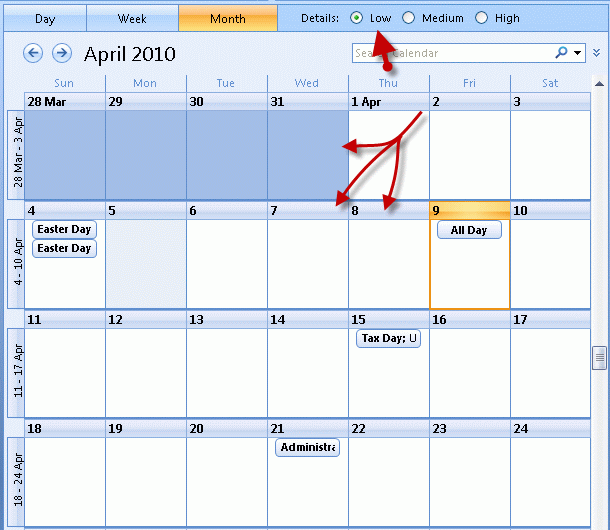
Outlook 2007 and 2010 have a view option called Details – it can be set on Low, Medium, or High Details. High shows all appointments and all day events, while Medium shows all day events and uses lines for timed appointments. Low shows only all day events and hides all timed appointments.
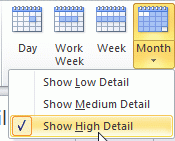
In Outlook 2010, the detail level is selected from the Month button on the View section or ribbon. Expand the Month button to select a different detail level.
In Outlook 2007, detail levels are selected just to the right of the Day/Week/Month tabs:

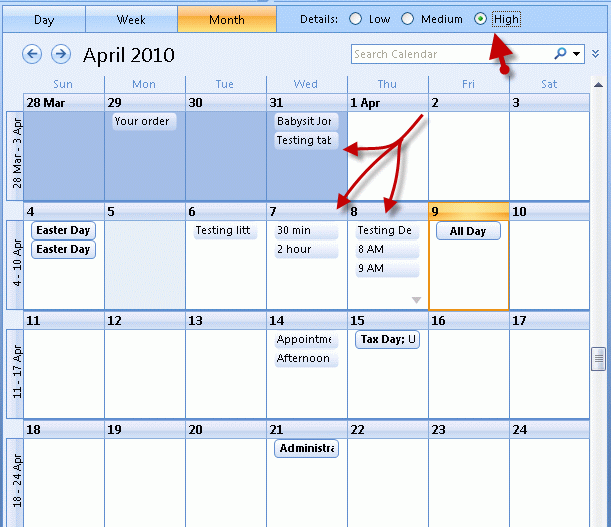
The purpose is to give you an overview of your schedule on the monthly calendar – in High details, many users see as few as 3 or 4 events and appointments. How many appointments and events you see on the calendar is controlled by the size of the Outlook window. At lower resolutions or when Outlook is not maximized, very few appointments and event display. Even at high resolutions, someone with a schedule full of short appointments may not see the full list on the screen.
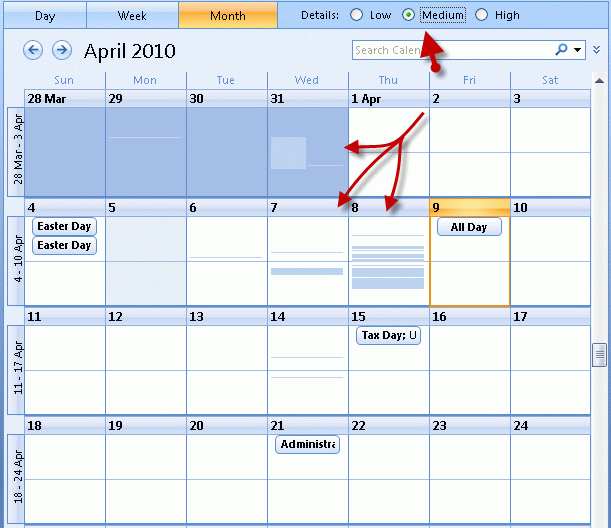
Using Medium detail, noon is indicated by a line across the center of the day, with timed appointments shown as lines above or below noon, so you have an idea approx when the appointment is. The thickness of the lines indicates how long the appointment is. This way a person can glance at the calendar and get an idea of how busy any part of any day is, based on the lines.
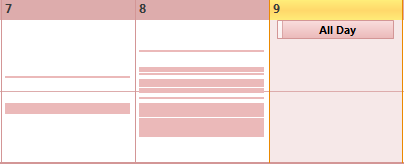
For example, in the screenshot, there is a short appointment right before noon on the 7th and a longer appointment in the early afternoon. The 8th is fairly busy, with appointments of varying lengths throughout the day and little room for more in the afternoon. Morning appointments may be possible on the 8th. There are no appointments scheduled on the 9th, which has as an all day event.
The Low Details view shows only All Day events:
Published May 13, 2011. Last updated on October 25, 2020.