![Diane Poremsky [Outlook MVP]](http://www.outlook-tips.net/images/2014/MVP_BlueOnly.png)
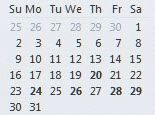
A lot of people want Outlook’s calendar to work like a paper calendar – they want to cross off appointments as they finish or X out “yesterday” to mark it complete.
Also see Automatically change Appointment categories using VBA
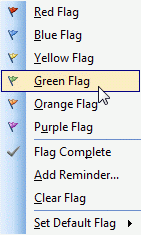
Outlook doesn’t offer such an option, but Outlook 2007 (and up) users can use color categories to mark events ‘completed’. Just create a Completed category and assign it a dark color. As you finish appointments, assign the Completed category – the calendar item picks up the color of the last category applied, which is Completed.
The category colors were brightened in newer builds of Outlook 16.0 (Outlook 2016, 2019, 2021, and 365). Dark gray is still around, but not quite as dark.
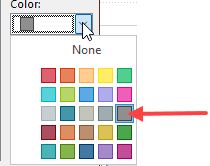
A chart of the old and new color names and category colors can be found here: Outlook Categories and Color Categories
Or you can use a feature of Outlook 2007 (and up) that many people find annoying: when you apply a color category to an all day event that is marked busy or tentative, the background color for that date matches the color category. You can either create a new appointment and set it ‘busy’ or ‘tentative’ then apply the complete category or change an existing all-day event and apply the completed category.

Tip 507: Crossing Out Days, Part 2
After yesterday's tip for Outlook 2007, several readers wanted to know if it would work for Outlook 2003. Sorry, no, it only works with Outlook 2007 (and up). You can assign labels to completed appointments in Outlook 2002/2003 to mark them off but you are limited in the choice of colors and you can’t mark the full day (using all day events), like you can in Outlook 2007.
Use Category Filters
You can use the Completed category in conjunction with a view filter to mark or hide completed items. In any version of Outlook, you can use a filter to hide the appointments assigned to the Completed category. While its not the same as crossing out a date, if your calendar is ‘full’ the lack of appointments on previous dates helps you focus on today in much the same manner as crossing out a date on a paper calendar does.
Note: If a category is assigned to an item, you cannot use a custom view to change its color on the calendar.
Published May 21, 2008. Last updated on August 3, 2022.