![Diane Poremsky [Outlook MVP]](http://www.outlook-tips.net/images/2014/MVP_BlueOnly.png)
When you get a new computer and move your existing data files to it, you may get an error that the PST file is not a valid file or that the information store cannot be opened. This may mean the PST file is marked read-only.
Microsoft Outlook can not be started, cannot open the Outlook window, the set of folders cannot be opened, cannot access file, you do not have the permission required to access the file
Cannot open your default e-mail folders. Cannot access file, You do not have the permission required to access the file
This is a very common problem if you had the PST file on a CD or DVD and is less likely if the PST was moved on a USB drive or over a network connection, but because it's so easy to check, you should do it as a first step if you moved the PST and it's not working as expected.
Verifying the read-only status takes just a few seconds.
- Open the Control Panel and search for Mail.
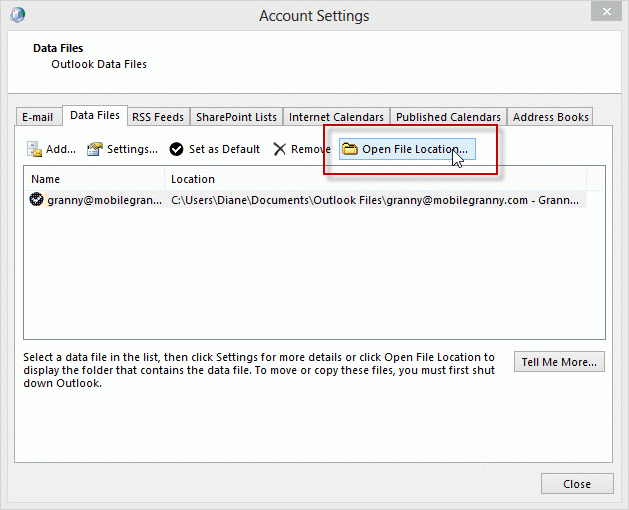
- If you have one profile, click Data Files. If you have more than one profile, click Show Profiles. Double click on the profile that received the error, then click Data Files.
- Select the data file named in the error and click the Open File location button. This will open Windows Explorer to the location of the selected data file.
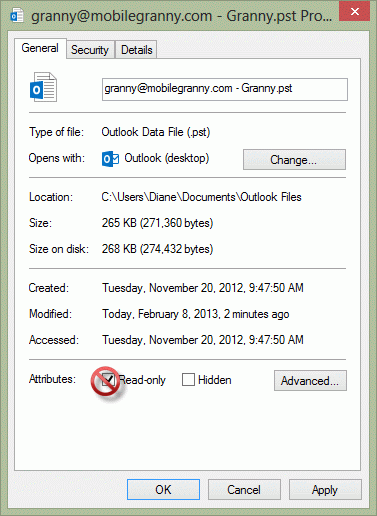
- Right-click on the data file and choose Properties.
- The box in front of Read-only should be unchecked.
Published December 21, 2011. Last updated on May 5, 2017.