The following code saves the attachments from selected messages but does not delete the attachments from the message(s). This VBA code is based on the code sample from my Outlook book: Save and Delete Attachments. Use it if you want to save the attachment, add a link to the saved file, and delete the attachment from the message.
Instructions to add the macro to a toolbar button or ribbon command are at the end of the page.
Save Attachments to the hard drive
Copy and paste the code from this page into your ThisOutlookSession project.
In Outlook, press Alt+F11 to open the VBA editor and expand Microsoft Outlook Objects then double click on ThisOutlookSession to open it in the editing pane and Ctrl+V to paste the code.
To use it you must first create a folder under your My Documents named OLAttachments (the code will not create it for you). Then select one or more messages and run the macro to save the attachments. You'll need to set macro security to warn before enabling macros or sign the macro. You can change the folder name or path where the attachments are saved by editing the code.
Public Sub SaveAttachments()
Dim objOL As Outlook.Application
Dim objMsg As Outlook.MailItem 'Object
Dim objAttachments As Outlook.Attachments
Dim objSelection As Outlook.Selection
Dim i As Long
Dim lngCount As Long
Dim strFile As String
Dim strFolderpath As String
Dim strDeletedFiles As String

    ' Get the path to your My Documents folder
    strFolderpath = CreateObject("WScript.Shell").SpecialFolders(16)
    On Error Resume Next

    ' Instantiate an Outlook Application object.
    Set objOL = Application

    ' Get the collection of selected objects.
    Set objSelection = objOL.ActiveExplorer.Selection

' The attachment folder needs to exist
' You can change this to another folder name of your choice

    ' Set the Attachment folder.
    strFolderpath = strFolderpath & "\OLAttachments\"

    ' Check each selected item for attachments.
    For Each objMsg In objSelection

    Set objAttachments = objMsg.Attachments
    lngCount = objAttachments.Count

    If lngCount > 0 Then

    ' Use a count down loop for removing items
    ' from a collection. Otherwise, the loop counter gets
    ' confused and only every other item is removed.

    For i = lngCount To 1 Step -1

    ' Get the file name.
    strFile = objAttachments.Item(i).FileName

    ' Combine with the path to the Temp folder.
    strFile = strFolderpath & strFile

    ' Save the attachment as a file.
    objAttachments.Item(i).SaveAsFile strFile

    Next i
    End If

    Next

ExitSub:

Set objAttachments = Nothing
Set objMsg = Nothing
Set objSelection = Nothing
Set objOL = Nothing
End Sub
Use an ItemAdd to Save Attachments on Arrival
This macro runs (automatically) on messages as they are added to the Inbox. Put it in ThisOutlookSession.
Option Explicit

Private WithEvents olInboxItems As Items

Private Sub Application_Startup()
  Dim objNS As NameSpace
  Set objNS = Application.Session
  ' instantiate objects declared WithEvents
  Set olInboxItems = objNS.GetDefaultFolder(olFolderInbox).Items
  Set objNS = Nothing
End Sub

Private Sub olInboxItems_ItemAdd(ByVal Item As Object)
  On Error Resume Next
If Item.Attachments.Count > 0 Then

Dim objAttachments As Outlook.Attachments
Dim lngCount As Long
Dim strFile As String
Dim sFileType As String
Dim i as long

Set objAttachments = Item.Attachments
    lngCount = objAttachments.Count
 For i = lngCount To 1 Step -1

' Get the file name.
 strFile = objAttachments.Item(i).FileName

 ' Get the path to your My Documents folder
    strFolderpath = CreateObject("WScript.Shell").SpecialFolders(16)
    strFolderpath = strFolderpath & "\OLAttachments\"

' Combine with the path to the folder.
 strFile = strFolderpath & strFile

' Save the attachment as a file.
 objAttachments.Item(i).SaveAsFile strFile

 Next i
End If

End Sub
Use Predefined Folders
This set of macros allows you to define a set of folders to save attachments to. Set the folder path in the small "stub" macros. The folder name is passed to the main macro. Add the macros to the ribbon or Quick Access Toolbar so they are easy to use.
To use: Select one or more messages that have attachments and run the macro.
To create more locations, copy a stub macro, then change the path and macro name. You need to end the file path with a \.
As written, the macro saves all attachments on the selected messages. If you need to filter it by file type, see the examples in other macros on this page.
These macros go in a Module.
Public strFolderpath As String
Public Sub SaveToDiane()
strFolderpath = "c:\diane\"
SaveAttachments
End Sub

Public Sub SaveToProject()
strFolderpath = "C:\project1\"
SaveAttachments
End Sub

Private Sub SaveAttachments()
Dim objOL As Outlook.Application
Dim objMsg As Object
Dim objAttachments As Outlook.Attachments
Dim objSelection As Outlook.Selection
Dim i As Long
Dim lngCount As Long
Dim strFile As String

    On Error Resume Next
    Set objOL = Application

    Set objSelection = objOL.ActiveExplorer.Selection

    ' Check each selected item for attachments.
    For Each objMsg In objSelection

    Set objAttachments = objMsg.Attachments
    lngCount = objAttachments.Count

    If lngCount > 0 Then

    ' Use a count down loop for removing items
    ' from a collection. Otherwise, the loop counter gets
    ' confused and only every other item is removed.

    For i = lngCount To 1 Step -1

    ' Get the file name.
    strFile = objAttachments.Item(i).FileName

    ' Combine with the path to the folder.
    strFile = strFolderpath & strFile

    ' Save the attachment as a file.
    objAttachments.Item(i).SaveAsFile strFile

    Next i
    End If

    Next

ExitSub:

Set objAttachments = Nothing
Set objMsg = Nothing
Set objSelection = Nothing
Set objOL = Nothing
End Sub
Run a Script Rule to Save Attachments
This version of the macro works with Rules, saving all attachments in messages that meet the condition of the rule to a folder under the user's documents folder.
To learn more about run a script rules, see Outlook's Rules and Alerts: Run a Script.
Public Sub SaveAttachments(Item As Outlook.MailItem)

If Item.Attachments.Count > 0 Then

Dim objAttachments As Outlook.Attachments
Dim lngCount As Long
Dim strFile As String
Dim sFileType As String
Dim i As Long

Set objAttachments = Item.Attachments
    lngCount = objAttachments.Count
 For i = lngCount To 1 Step -1

' Get the file name.
 strFile = objAttachments.Item(i).FileName

 ' Get the path to your My Documents folder
    strfolderpath = CreateObject("WScript.Shell").SpecialFolders(16)
    strfolderpath = strfolderpath & "\Attachments\"

' Combine with the path to the folder.
 strFile = strfolderpath & strFile

' Save the attachment as a file.
 objAttachments.Item(i).SaveAsFile strFile

 Next i
End If

End Sub
Add the message date to the filename
If you want to add the message date to the file, you'll need to get the date from the SentOn or ReceivedDate fields then format it as a string before adding it to the file name. It's a total of 4 new lines and one edited line.
First, Dim the two new variables at the top of the macro:
Dim dtDate As Date
Dim sName As String
To format the date and time and add it to the filename in 20130905045911-filename format, you'll add two lines of code after you count the attachments to get the date and format it, then edit the line that creates the filename.
If lngCount > 0 Then

       dtDate = objMsg.SentOn

         sName = Format(dtDate, "yyyymmdd", vbUseSystemDayOfWeek, vbUseSystem) & Format(dtDate, "hhnnss", vbUseSystemDayOfWeek, vbUseSystem) & "-"

   For i = lngCount To 1 Step -1

    ' Get the file name.
       strFile = sName & objAttachments.Item(i).FileName
Use the Subject and remove illegal characters
If you use the email subject in the file name, you will need to remove illegal characters that are not supported in Windows file system.
You can do that using the ReplaceCharsForFileName function (below). As written, the illegal characters are replaced with a dash (-) but you can change the word seperator.
Use this to get the subject and remove the illegal characters.
If lngCount > 0 Then

    sSubject = objMsg.Subject
' change the seperator if desired
    sSubject = ReplaceCharsForFileName sSubject, "-"

   For i = lngCount To 1 Step -1

    ' Get the file name.
       strFile = sSubject & objAttachments.Item(i).FileName
To trim long subjects, use the Left function to get the first characters. This snippet uses the first 25 characters of the subject.
sSubject = left(objMsg.Subject, 25)
To use the date and subject, use this code:
If lngCount > 0 Then

    sSubject = objMsg.Subject
    sSubject = ReplaceCharsForFileName sSubject, "-"

    dtDate = objMsg.SentOn
    sName = Format(dtDate, "yyyymmdd", vbUseSystemDayOfWeek, vbUseSystem) & Format(dtDate, "hhnnss", vbUseSystemDayOfWeek, vbUseSystem) & "-"

   For i = lngCount To 1 Step -1
 strFile = sSubject & sName & objAttachments.Item(i).FileName
Public Sub ReplaceCharsForFileName(sSubject As String, _ sChr As String _ ) sSubject = Replace(sSubject, "'", sChr) sSubject = Replace(sSubject, "*", sChr) sSubject = Replace(sSubject, "/", sChr) sSubject = Replace(sSubject, "\", sChr) sSubject = Replace(sSubject, ":", sChr) sSubject = Replace(sSubject, "?", sChr) sSubject = Replace(sSubject, Chr(34), sChr) sSubject = Replace(sSubject, "<", sChr) sSubject = Replace(sSubject, ">", sChr) sSubject = Replace(sSubject, "|", sChr) End Sub
Don't save images in signatures
This macro saves all attachments, including images embedded in signatures (they are attachments after all). To avoid saving signature images, you have two options: don't save image files, or don't save smaller files. You could even do both and save only larger images files.
Replace the code between For i = lngCount To 1 Step -1 / Next i lines with the following to filter out files smaller than 5KB. This should catch most signature images (and many text files).
If the attachments you need to save are always over 5 KB, you can increase the file size. (For reference, a blank Word document is over 10KB.)
    For i = lngCount To 1 Step -1
       If objAttachments.Item(i).Size > 5200 Then

    ' Get the file name.
    strFile = objAttachments.Item(i).filename

    ' Combine with the path to the Temp folder.
    strFile = strFolderpath & strFile

    ' Save the attachment as a file.
    objAttachments.Item(i).SaveAsFile strFile
     End If

    Next i
Save by File type
If you want to skip or save only a specific file type, use If LCase(Right(strFile, 4)) <> ".ext" format, where .ext is the extension. Add it after the first line strFile = line (and don't forget to add the End if before the Next i). You can use it to exclude a file type or use an equal (=) sign to save only a specific file type. (For 4-character extensions, use only the characters, don't include the dot.)
To work with a longer list of file types, use a Select Case statement. In this example, we're looking for image attachments, and if less than approx 5KB, we skip them. Larger image attachments will be saved.
 For i = lngCount To 1 Step -1

    ' Get the file name.
    strFile = objAttachments.Item(i).filename

' This code looks at the last 4 characters in a filename
      sFileType = LCase$(Right$(strFile, 4))

      Select Case sFileType
 ' Add additional file types below
       Case ".jpg", ".png", ".gif"
        If objAttachments.Item(i).Size < 5200 Then
     GoTo nexti
        End If
      End Select

    ' Combine with the path to the Temp folder.
    strFile = strFolderpath & strFile

    ' Save the attachment as a file.
    objAttachments.Item(i).SaveAsFile strFile

nexti:
    Next i
Increment duplicate file names
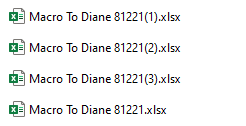
This version of the macro check to see if the file exists, it so, it adds a number to the file name.
Public Sub SaveAttachments()
Dim objOL As Outlook.Application
Dim objMsg As Outlook.MailItem 'Object
Dim objAttachments As Outlook.Attachments
Dim objSelection As Outlook.Selection
Dim i As Long
Dim lngCount As Long
Dim strFile As String
Dim strFolderpath As String
Dim strDeletedFiles As String

    ' Get the path to your My Documents folder
    strFolderpath = CreateObject("WScript.Shell").SpecialFolders(16)
    On Error Resume Next

    ' Instantiate an Outlook Application object.
    Set objOL = Application

    ' Get the collection of selected objects.
    Set objSelection = objOL.ActiveExplorer.Selection

' The attachment folder needs to exist
' You can change this to another folder name of your choice

    ' Set the Attachment folder.
    strFolderpath = strFolderpath & "\"

    ' Check each selected item for attachments.
    For Each objMsg In objSelection

    Set objAttachments = objMsg.Attachments
    lngCount = objAttachments.Count

    If lngCount > 0 Then

    ' Use a count down loop for removing items
    ' from a collection. Otherwise, the loop counter gets
    ' confused and only every other item is removed.

For i = lngCount To 1 Step -1

 ' Get the file name.
    strFile = objAttachments.Item(i).Filename

    lCount = InStrRev(strFile, ".") - 1
    pre = Left(strFile, lCount)
    ext = Right(strFile, Len(strFile) - lCount)

    ' Combine with the path to make the final path
    strFile = strFolderpath & pre & ext

    'check for existing
    Dim nnumber As String
    nnumber = 0

    Do
    FileExists = Dir(strFile)

    If FileExists = "" Then
    Exit Do
    Else

    nnumber = nnumber + 1
    strFile = strFolderpath & pre & "(" & nnumber & ")" & ext

    End If
    Loop

Debug.Print strFile

objAttachments.Item(i).SaveAsFile strFile

    Next i
    End If

    Next

ExitSub:

Set objAttachments = Nothing
Set objMsg = Nothing
Set objSelection = Nothing
Set objOL = Nothing
End Sub
Add a number to each attachment
This macro merges the first macro on this page with the macro at Write the last used value to the registry sample to add a number to each saved attachment, incrementing as attachments are saved. Because the last used value is in the registry, the count will persist because restarts.
Get the complete macro, ready to use: AttachmentIndex
 ' HKEY_CURRENT_USER\Software\VB and VBA Program Settings\Outlook\Index
    sAppName = "Outlook"
    sSection = "Index"
    sKey = "Last Index Number"
 ' The default starting number.
     iDefault = 101 ' adjust as needed

 ' Get stored registry value, if any.
     lRegValue = GetSetting(sAppName, sSection, sKey, iDefault)

 ' If the result is 0, set to default value.
     If lRegValue = 0 Then lRegValue = iDefault

' Put the save attachment code here
    strFolderpath = CreateObject("WScript.Shell").SpecialFolders(16)
    On Error Resume Next

    Set objOL = Application
    Set objSelection = objOL.ActiveExplorer.Selection
    strFolderpath = strFolderpath & "\OLAttachments\"

    For Each objMsg In objSelection
    Set objAttachments = objMsg.Attachments
    lngCount = objAttachments.Count

    If lngCount > 0 Then
    For i = lngCount To 1 Step -1

 ' Get the file name.
    strFile = objAttachments.Item(i).fileName

    lcount = InStrRev(strFile, ".") - 1
    pre = Left(strFile, lcount)
    ext = Right(strFile, Len(strFile) - lcount)

    ' Combine with the path to make the final path
    strFile = strFolderpath & pre & "_" & lRegValue & ext

    strFile = strFolderpath & strFile
    objAttachments.Item(i).SaveAsFile strFile

' add 1 to the index
    lRegValue = lRegValue + 1
        Err.Clear
    Next

   ' update the registry at the end
     SaveSetting sAppName, sSection, sKey, lRegValue
Save Attachments in Subfolders
To save the attachments in subfolders, you need to use the File Scripting Object to create the folder if it does not exist.
A complete, ready-to-use sample macro is here.
For Each objMsg In objSelection

  ' Set the Attachment folder.
    strFolder = strFolderpath & "\OLAttachments\"
    Set objAttachments = objMsg.Attachments
' put it together with the sender name
 strFolder = strFolder & objMsg.SenderName & "\"

 ' if the sender's folder doesn't exist, create it
 If Not FSO.FolderExists(strFolder) Then
 FSO.CreateFolder (strFolder)
 End If

    lngCount = objAttachments.Count
    If lngCount > 0 Then
      For i = lngCount To 1 Step -1
    strFile = objAttachments.Item(i).FileName
    strFile = strFolder & strFile
    objAttachments.Item(i).SaveAsFile strFile
Use Macro with Different Folders
This version of the macro save the attachments on the selected message to a subfolder. By using a "stub macro" to set the name of the subfolder, you can don't need ot repeat the long macro multiple times to use it with different pre-defined folders.
In this example, I'm either saving the attachment to From Bob or From Jim folder in my Documents folder.
C:\Users\username\Documents\From Bob\
C:\Users\username\Documents\From Jim\
Create buttons on the ribbon for the stub macros. Select the message then click the appropriate button.
Dim strFolder As String
Public Sub SaveToFolderBob()
    strFolder = "From Bob"
    SaveAttachments
End Sub

Public Sub SaveToFolderJim()
    strFolder = "From Jim"
    SaveAttachments
End Sub

Private Sub SaveAttachments()
Dim objOL As Outlook.Application
Dim objMsg As Outlook.MailItem 'Object
Dim objAttachments As Outlook.Attachments
Dim objSelection As Outlook.Selection
Dim i As Long
Dim lngCount As Long
Dim strFile As String
Dim strFolderpath As String
Dim strDeletedFiles As String

    ' Get the path to your My Documents folder
    strFolderpath = CreateObject("WScript.Shell").SpecialFolders(16)
    Debug.Print strFolderpath
    On Error Resume Next

' The attachment folder needs to exist
' You can change this to another folder name of your choice

    ' Set the Attachment folder.
    strFolderpath = strFolderpath & "\" & strFolder & "\"
    Debug.Print strFolderpath

    Set objOL = Outlook.Application
    Set objMsg = objOL.ActiveExplorer.Selection.Item(1)

    Set objAttachments = objMsg.Attachments
    lngCount = objAttachments.Count

    If lngCount > 0 Then

    ' Use a count down loop for removing items
    ' from a collection. Otherwise, the loop counter gets
    ' confused and only every other item is removed.

    For i = lngCount To 1 Step -1

    ' Get the file name.
    strFile = objAttachments.Item(i).FileName

    ' Combine with the path to the Temp folder.
    strFile = strFolderpath & strFile

    ' Save the attachment as a file.
    objAttachments.Item(i).SaveAsFile strFile

    Next i
    End If

ExitSub:

Set objAttachments = Nothing
Set objMsg = Nothing
Set objSelection = Nothing
Set objOL = Nothing
End Sub
Assign the macro to a button
In Outlook 2007 and older, you can create a toolbar button to run the macro. In Outlook 2010, you'll need to customize the ribbon.
More information is at Customize the Outlook Toolbar, Ribbon or QAT and at Customizing the Quick Access Toolbar (QAT).
Run the macro using a ribbon or QAT shortcut
Step 1: To create a button to run a macro in Outlook 2010, go to File, Options, and choose Customize Ribbon. (If you want a button on the QAT, choose Quick Access Toolbar instead.)
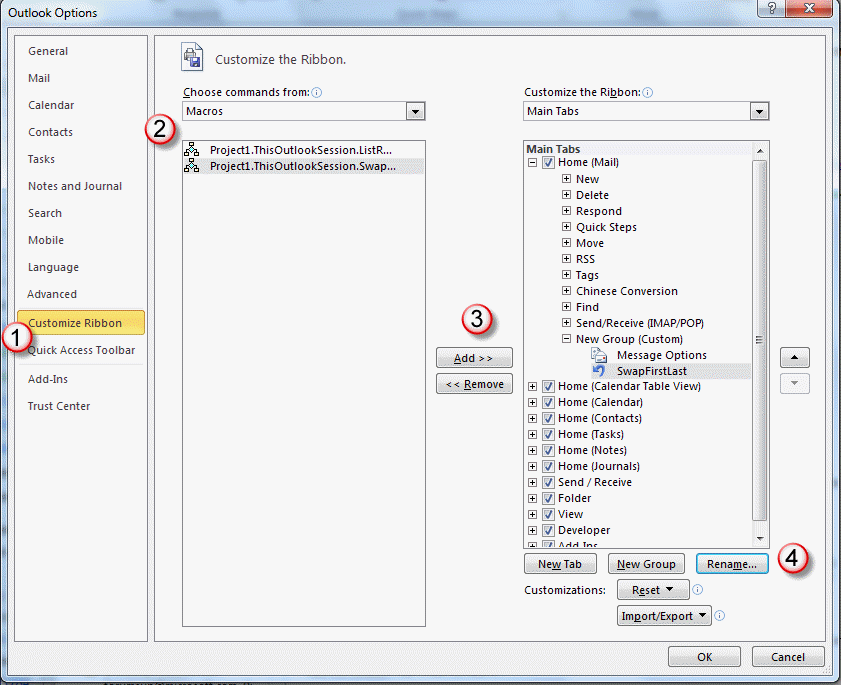
Step 2: Choose Macro from the Choose Commands From menu and select the macro you want to add to the ribbon or QAT.
Step 3: Select the Group you want to add the macro to. If it doesn't exist yet, use the New Group buttons to create the group.
Step 4: Use the Rename button to give the macro a friendly name and change the icon. You are limited to the icons in the dialog (unless you want to program a ribbon command).
Run the macro from a toolbar button
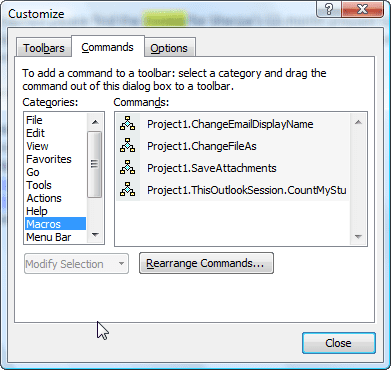
To create a toolbar button for it, go to View, Toolbar, Customize, Commands tab. In the Categories pane, type M to jump to Macros. On the Commands side, drag the macro you created to the toolbar. Right click on the button to rename it and assign a new icon.

Hi Diane
Does "Increment duplicate file names" work with Outlook 365?
I wanted my own file path so I changed
' Get the path to your My Documents folder strFolderpath = CreateObject("WScript.Shell").SpecialFolders(16) On Error Resume Nextto' Get the path to your My Documents folder strFolderpath = "C:\my path" On Error Resume Nextis this correct?Thanks!
Edit: I noticed when I read my post that I've missed the last "\" in my path.
The desktop Outlook that is installed with Microsoft 365 Office subscription software, yes it works with it. Outlook on the web, no.
Thanks Diane! This has been extremely helpful. I am looking at saving excel files to a local drive; however, the excel files have their first 3 rows completely blank. Is there anyway to delete those rows upon download?
Thanks in advance!
You would need to use an Excel macro to do that. It could be converted to an Outlook macro that opens the file and deletes the empty rows. I don't have a macro that does it though.
Thanks Diane!
This is an incredible source. I attempted to combine two of your codes (Save Attachments in Subfolders and Increment duplicate file names), but did not succeed. Is it possible to do this?
It is possible. I'll take a look.
It is possible. I did not test, but this should work. { fingers crossed } Public Sub SaveinSenderFolder() Dim objOL As Outlook.Application Dim objMsg As Outlook.MailItem 'Object Dim objAttachments As Outlook.Attachments Dim objSelection As Outlook.Selection Dim i As Long Dim lngCount As Long Dim strFile As String Dim strFolderpath As String, strFolder As String Dim strDeletedFiles As String Dim FSO As Object Set FSO = CreateObject("Scripting.FileSystemObject") strFolderpath = CreateObject("WScript.Shell").SpecialFolders(16) ' On Error Resume Next Set objOL = Application Set objSelection = objOL.ActiveExplorer.Selection ' The attachment folder needs to exist ' You can change this to another folder name of your choice ' Check each selected item for attachments. For Each objMsg In objSelection ' Set the Attachment folder. strFolder = strFolderpath & "\OLAttachments\" Set objAttachments = objMsg.Attachments strFolder = strFolder & objMsg.SenderName & "\" ' if the sender's folder doesn't exist, create it If Not FSO.FolderExists(strFolder) Then FSO.CreateFolder (strFolder) End If lngCount = objAttachments.Count If lngCount > 0 Then ' Use a count down loop for removing items ' from a collection. Otherwise, the loop counter gets ' confused and only every other item is removed. For i = lngCount To 1 Step -1 ' Get the file name. strFile… Read more »
Hi Diane! It's amazing how much labor can be saved with your projects! But i have i issue with Outlook macros for 2 weeks now... I can't get it work to download a specific named attachments from a Outlook Inbox sub folder to my SSD folder. Can you please help me with that task? For simplicity the Outlook sub folder will be Test, and the .csv attachments always have a "906" at the end of the Subject. I am trying to with this code : Sub Download_Hrabrovo_Attachment() Dim rvApp As Outlook.Application Dim rvNS As Outlook.NameSpace Dim rvFolder As Outlook.MAPIFolder Dim rvItem As Object Dim mailitem As Outlook.mailitem Dim rvAtt As Outlook.Attachment Set rvApp = New Outlook.Application Set rvNS = rvApp.GetNamespace("MAPI") Set rvFolder = rvNS.GetDefaultFolder(rvFolderInbox) Set rvFolder = rvFolder.Folders("Inbox") Set rvFolder = rvFolder.Folders("Meteologica SA Power Forecast") For Each rvItem In rvFolder.Items If rvItem.Class = rvMail Then Set mailitem = rvItem If InStr(mailitem.Subject, "Wind Power Forecast" & "906") > 0 & _ InStr(rvAtt.FileName, "-wind-power-forecast-HrabrovoWind") Then For Each rvAtt In mailitem.Attachments rvAtt.SaveAsFile ("C:\Users\BG-TRADE-005\OneDrive - ****.com\Desktop\Schedule\Mail Temp\Download\") Next rvAtt End If End If Next rvItem Set rvFolder = Nothing Set rvNS = Nothing… Read more »
I have a large collection of Calendar/Appointment items. All of them were created with the original email attached. I'm trying to access the sender email address from these attached emails. With type MailItems, I've been able to access the
MailItem.SenderEmailAddressproperty, but don't know how to do this with an AppointmentItem that contains an email attachment. I've tried using AppointmentItem.Attachmentments.item(1).SenderEmailAddress without success (there's only 1 attachment in these appointment items).You need to save the attachment, open it and then get the sender address. I have a macro around here, somewhere, that does it.
Thanks. Used <item>.Attachments.SaveAsFile method to save the attachment, then Session.OpenSharedItem(<path to .msg file>) to open the attachment, then use SenderEmailAddress property to extract the email address. Some weird problems encountered - when I tried to reuse the same filename (e.g. 'untitled.msg'), I got random file system failures to open the .msg file that had just been saved (both using VBA and in File Explorer). Ended up using saving use <item>.Attachments.Filename property to save the file, then using 'Kill <path>\*.*' afterwards to cleanup the temp .msg files.
This is my 2nd attempt to post this - first attempt on 12/31 showed @guest_219043 - awaiting approval, then disapppeared... Unfortunately, what worked on one system (my test environment with a copy of the user's outlook.pst file - in my last past just below) failed on the target environment. Endless random occurrences of 'unable to save attachment' occurs even with valid path (I checked path in debugger). The attachment actually exists in the temp folder I set up, but it can't be opened, even in File Explorer. Have to exit Outlook completely to remove and retry. Here's what I've tried so far: 1) The path to the temp attachments folder was fairly long, so I tried shortening it - no success, same random errors. 2) Thinking that it might be due to invalid characters in filename in .Filename property of attachment, I changed to using a sequential filename ("temp" & <index> & ".msg"), same random occurrences of the error. It's baffling - some of the attachments are saved, others fail and once it fails, I can't even open the attachment in File Explorer Here's the code block I'm using (can't use the code block <> feature, it inserts endless  … Read more »
It turns out the problem was with an Outlook add-in. Once I disabled the add-on, the code worked properly. Should have checked this first.
Which addin was causing problems?
Hello Diane, thanks a lot for this code, it's very very helpful.
I tried to replace the strfolderpath = strfolderpath & "\Attachments\"
with a strfolderpath = "P:\MyCompany\Finance\ which is a network drive but it's taking a longer time.
Should I stick with the patch in C drive and then manually copy it from there? Not sure why would be be slower.....
Thank you
Yes, using a location will be faster. Outlook sometimes has trouble writing to network drives.
Hi Dianne,
I am attempting to use your VBA code, but it keeps erroring out on the following line of code
"sSubject = ReplaceCharsForFileName sSubject, "-""
I have added the "ReplaceCharsForFileName function" in as well and I still error out. I cannot see what is causing the issue. Would you have any suggestions on possible fixes?
Thank you
Ron
Using Outlook 365 in a Win 10 OS