![Diane Poremsky [Outlook MVP]](http://www.outlook-tips.net/images/2014/MVP_BlueOnly.png)
On this page we have the icons you may see in your Inbox, Sent folder, or in the message header in Outlook 2013 and above.
Outlook 2013 aims for a cleaner look and many default icons, such as read and unread envelopes are gone. In the case of Unread, the envelope was replaced by a blue bar to the left of the message.
Mail | Calendar & Tasks | Contacts & Journal
Rules & Alerts | Toolbars | More Icons
Mail Icons
| Icons | Description | |
|---|---|---|
 |  | Unread Message (Text in Message list should be bold.) Beginning with Outlook 2013, a Blue bar marks unread messages. |
 | No icon; Blue bar is gone | Opened (read) Message (Text in message list is no longer bold.) |
 |  | Replied to message (May include icons for signed and encrypted icons) |
 | Forwarded message (may include signed and encrypted icons) | |
 |  | High Importance Message (may be combined with the attachment icon or have an exclamation mark in the importance column  ) ) |
 | Low Importance Message (may be combined with the attachment icon or have the down arrow in the importance column  ) ) | |
 |  | Has Attachment (may be combined with an importance icon or have a paperclip in the attachment column) |
 |  | SharePoint Alert |
 This message was replied to, has an attachment and is marked High Importance. (Outlook 2003/2007) This message was replied to, has an attachment and is marked High Importance. (Outlook 2003/2007) | ||
 | Draft or Resend message icon. | |
 | Post (IPM.Post) form | |
 | Meeting Request | |
 | Accepted Meeting | |
 | Declined Meeting request | |
 | Cancelled Meeting Request | |
 | Tentative Acceptance (or Propose New Time in OL2003/2007) | |
 | Task Request | |
 | Accepted Task | |
 | Declined Task | |
 | Signed and Encrypted (The signed and/or or encrypted icons may be on envelopes as shown below.) | |
 | Signed | |
| Signed, but there is a problem with certificate | ||
 | Encrypted. Uses a lock ( ) icon. ) icon. | |
 | Secure Read Receipt | |
 | Delivery error: Undeliverable. | |
 | Delivery confirmation: Delivered. | |
 | Read Receipt: Item marked as read. | |
 | Read Receipt: deleted when marked unread. | |
 | Recall Attempted | |
 | Recall Failed. | |
 | Flagged by Sender | |
 | Out of Office. When a person has their Exchange account configured to send Out of office messages, you'll | |
 | Message Tracking. Seen on items in Sent folder when tracking or voting is requested *after first response is received and processed*. Contains read/delivery receipt information or vote results. | |
 | Icons with the blue i symbol  indicate there is more information, such as an update to the meeting request. indicate there is more information, such as an update to the meeting request. | |
 | Conflict. Occurs when syncing Outlook items with a PDA or when using cached mode with Exchange. Look in the Sync Issues folder. | |
 May see either icon in the Sent folder | SMS message icon. The phone is used for messages sent using the mobile messaging service. | |
IMAP and Offline Exchange Icons
When you download headers only (usually IMAP and Exchange offline mode), you'll see the following icons in your Inbox, indicating the status of the message:
Only the message header was downloaded:

When a header is marked for deletion, the icon includes a red x (  ).
).
An icon with a small blue down arrow arrow ( ) means the message is marked for download.
This screenshot shows the 4 options you'll see when you download headers only.
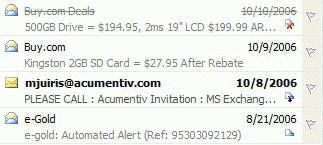
The first message is marked for deletion.
The second message is completely downloaded.
The third is marked for download.
The last is the header only – it's not yet marked to download or for deletion.
Messenger Icons
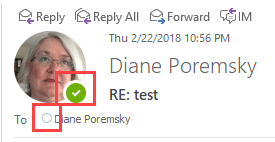
In Outlook's preview pane, in an opened message, or when composing messages you may see little balls near the sender or recipients name. These indicate if the sender is online with Skype or Skype for Business. Green is online, an empty white circle indicates offline or presence unknown.
Mailbox Folders icons
| Icons | Description | |
|---|---|---|
| OL2013 | ||
 |  | Outlook Today – top level of the mailbox |
| Working offline (sample of Outlook Bar and Folder list icons) | ||
 | Notification area icon for working offline. When gray  , Outlook is shutting down but outlook.exe is still loaded. (Added beginning with Outlook 2007 SP2) , Outlook is shutting down but outlook.exe is still loaded. (Added beginning with Outlook 2007 SP2) | |
 | Mail Folders (old icons are from Outlook Bar and Folder list) | |
 | Contacts Folders (old icons are from Outlook Bar and Folder list) | |
 | Calendar Folders (old icons are from Outlook Bar and Folder list) | |
 | Task Folders (old icons are from Outlook Bar and Folder list) | |
 | Notes Folders (old icons are from Outlook Bar and Folder list) | |
|  | Folder List (button in Outlook's Navigation bar) Outlook 2013 uses a Folder bar with the names written out or a compact bar with icons. |
 | Additional Mailboxes or Personal Folder stores (old icons are from Outlook Bar and Folder list) | |
 | Journal Folder (old icons are from Outlook Bar and Folder list) | |
 | | SharePoint alerts |
Mail | Calendar & Tasks | Contacts & Journal
Rules & Alerts | Toolbars | More Icons
Published May 14, 2011. Last updated on October 25, 2020.