This content has been archived. It may no longer be relevant.
Outlook doesn't include a method to backup profiles. you could use Windows Easy Transfer or the Windows XP File and Settings Wizard and the Office Save my Settings wizard, but each has limitations and introduces problems of their own. Another option exists for Outlook - the Outlook Profile file or PRF. If you're unfamiliar with a PRF, the easiest way to create one is using the CIW. After that, you can edit the PRF as your account information changes.
The Office Resource Kit includes the Custom Installation Wizard (CIW) you can use to create a custom installation. This is especially useful if you reformat or change machines often -- all of your Office preferences are defined prior to installation. Each version of Office has it's own customization and configuration wizard (which will vary slightly from the screenshots here) but the PRF each creates will work with any version of Outlook.
Tip: Be sure you use the CIW created for your version of Office/Outlook.
Note: Anyone can use the CIW or a PRF. You do not need to be a corporate or Exchange server user to use a PRF. Note that corporate users may need administrative rights on their computer to use it. Right click on the CIW application and choose Run as Administrator to use.
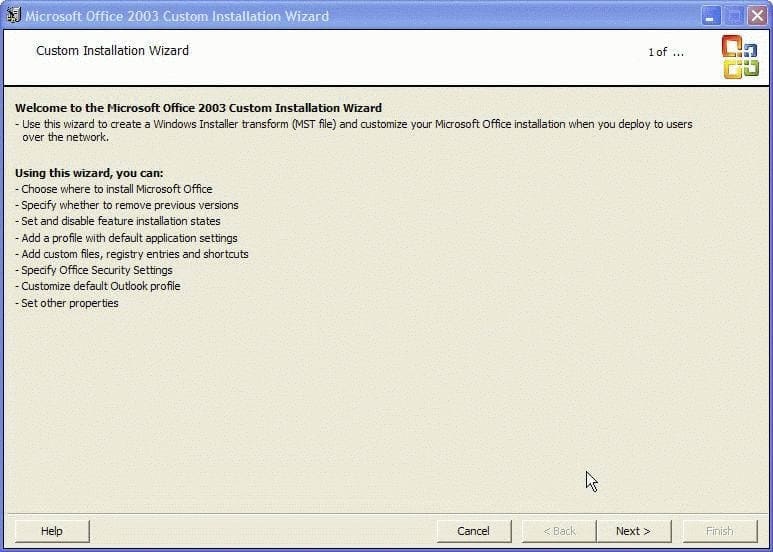
Download the ORK toolbox and install it, then open the Custom Installation Wizard in the Office folder on Windows Start menu and run it. Your first screen looks like this:
Click Next until you get to screen 4, entering any information the wizard asks for, especially the location of the MSI.
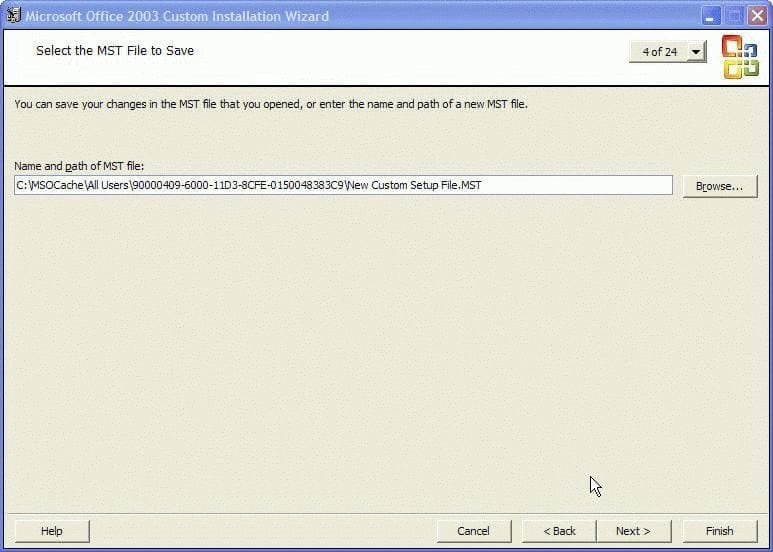
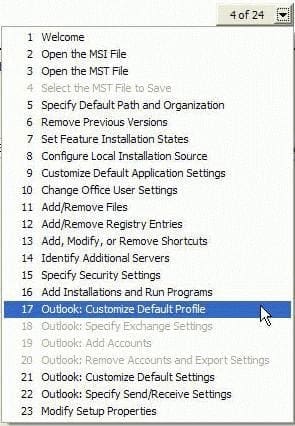
If you allowed Office to create a local installation source, look for it in a folder called MSOCache. At screen 4, click the 4 of 24 page button at the top of the screen and select 17, Outlook: Customize Default Profile to jump to the correct screen, or continue to click Next until you reach screen 17.
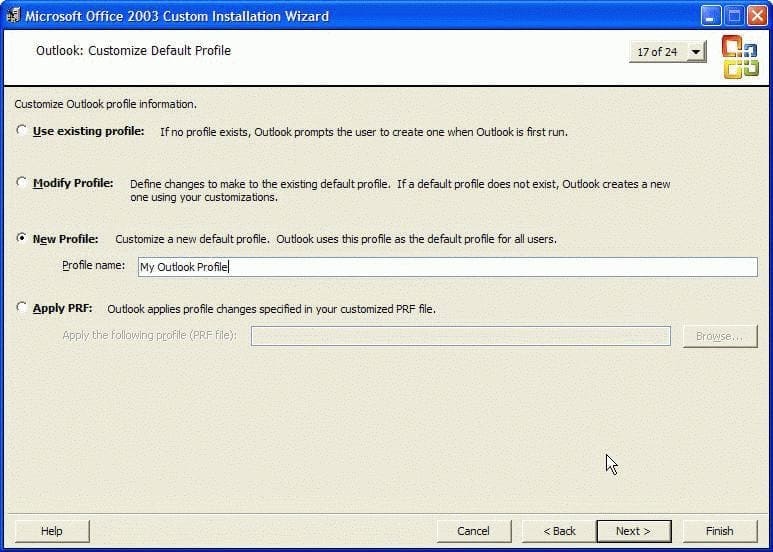
Select New Profile and Enter a profile name. For example, when you first run Outlook, it creates a default profile called "Outlook" and it's what is listed in the profile selector when you have more than one profile configured. Click Next.
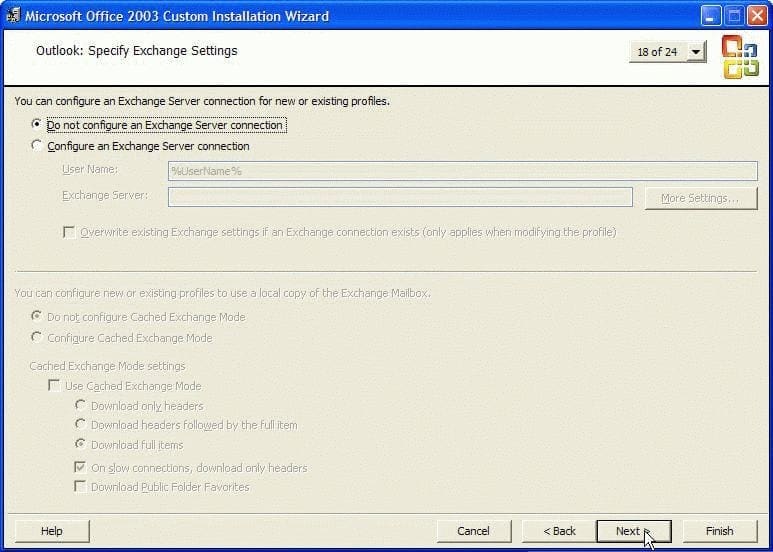
If you have an Exchange server account, configure the account on the next screen, otherwise click Next.
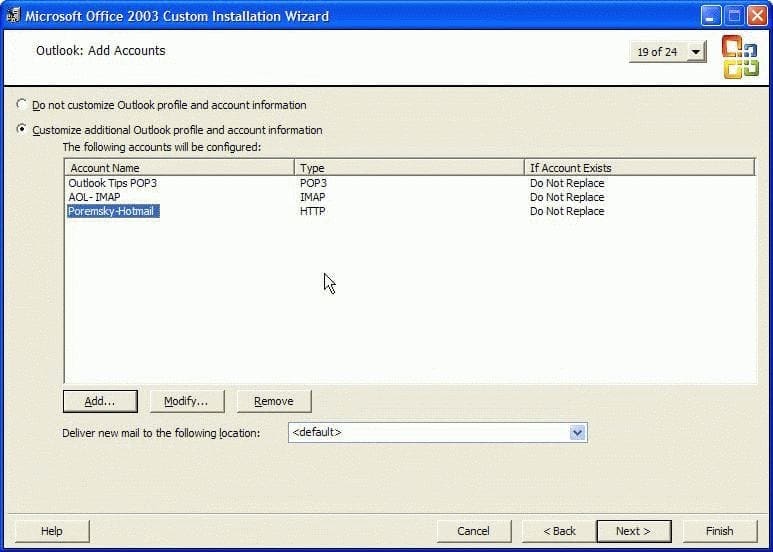
Select Customize additional accounts to add POP3, IMAP, additional PSTs or LDAP address books to your profile.
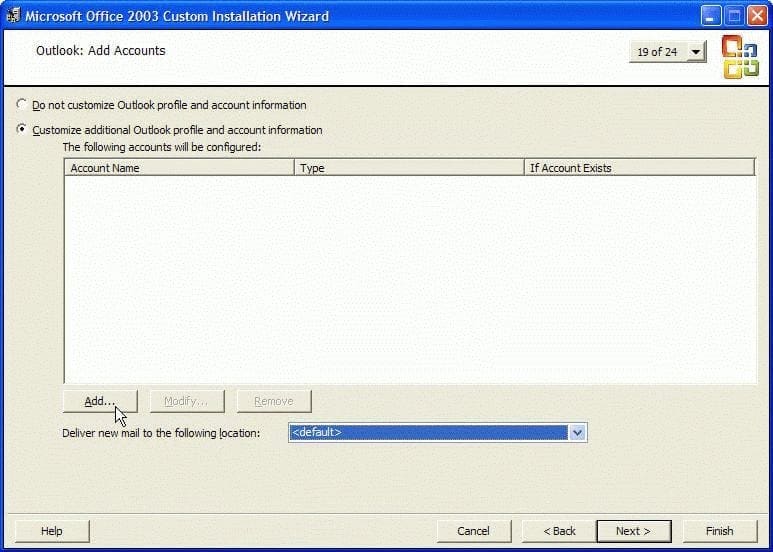
If you want to control where the PST is created (for POP3, not HTTP/IMAP) add a Personal Folders file at this time. Add the Outlook Address Book service to the profile. Please note that HTTP protocol is no longer supported by Hotmail - do not use it.
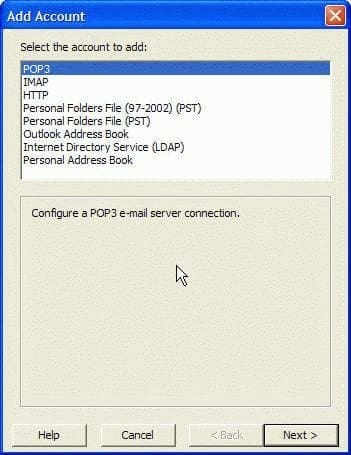
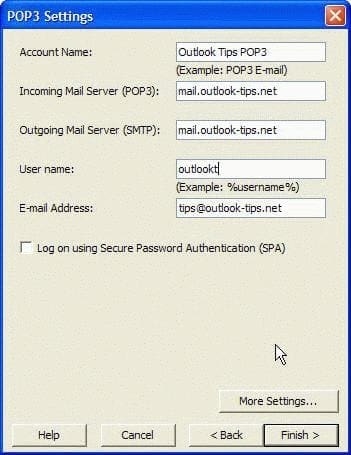
Enter your account information, choosing More Settings if you need to configure specific logon information or different ports. When you are finished creating accounts and adding services, click Next on the Add Accounts screen.
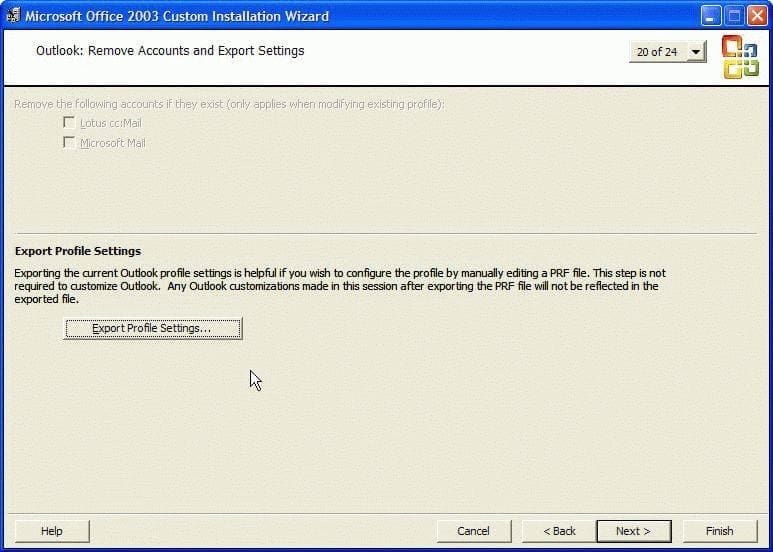
The final screen you need to use is Screen 20. Click Export profile settings and save your profile. After it's saved, click Finish or click the X to exit out of the CIW. But you may want to keep it open until you test your PRF. You can go back to the other screens to make changes in the PRF and save it again.
Now you're ready to test your profile. Close Outlook and locate the PRF you created. Double click on it and let Outlook import it. Verify your accounts are working and save the PRF to use the next time you need to create a new profile.
If you need to make changes to the accounts or add new ones, open the PRF in Notepad and edit it. The two key areas are the Accountn listings in Section 3 and the Accountn values in Section 5. Don't edit Sections 6 and 7. Section 2 and 4 has information about file location.
Download a Sample profile file. The sample shows the settings used for POP3 and IMAP accounts (HTTP for Hotmail is no longer supported), using the default actions for a new profile. You can edit the account information and use it for your own PRF instead of using the CIW. Delete unused account types or copy and paste to create more, then edit the appropriate account type if you have more than one account.
Note: If you have an Exchange account, use the CIW to create the profile.
To see how PSTs are handled and to learn more about the settings used in a PRF, see Understanding an Outlook Profile file (PRF).
More Information
Tips for using Outlook .prf files to configure profiles
Customize Outlook profiles by using an Outlook Profile (PRF) file for Outlook 2007, from Technet

Non riesco ad esportare tutti gli accounts configurati in Outlook 2016, esiste un metodo per fare ciò? Grazie. G.S.
I can't export all accounts configured in Outlook 2016, there is one way to do this? Thank you. G.S.
Do you want the export the accounts (you'll need to export the Profile registry key), export the mail, or use a PRF to set up the accounts?