One of the most important new features added to Outlook beginning with Microsoft Outlook 2003: blocked Web content. This feature protects your privacy by blocking “web bugs.”
As you quickly discover, newsletters and advertisements that you receive don’t display the images. While images are the most noticeable blocked item, any downloaded content is blocked, including scripts and external style sheets.
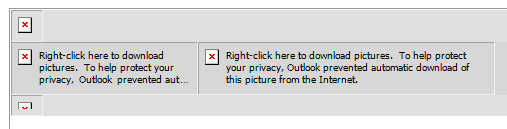
Right click on any picture placeholder or on the Infobar to show the images and internet content. You can add senders or domains to the Safe Senders list from this menu if you always want to see the images on some messages automatically. Tip: If some contacts frequently send you messages containing web content, add their name to the safe sender list instead of trusting all senders in your address book.
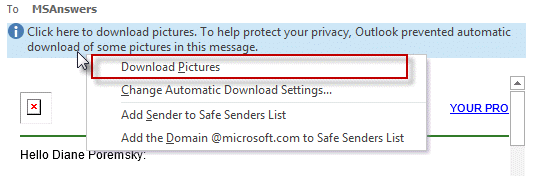
Tip: If you use Outlook on a metered or dial-up account, leaving images blocked can save bandwidth s well as prevents Outlook from initiating a connection as you read your messages. You can enable the images on each message when you are connected to the internet.
Change Automatic Download Settings
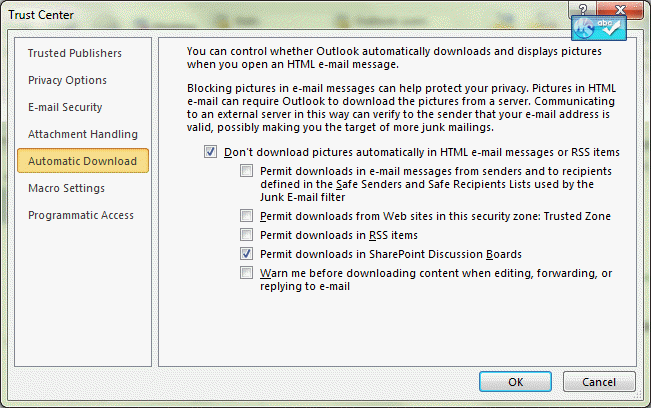
To change the automatic download settings, right-click on the Infobar and choose Change Automatic Download Settings to open the dialog.
You can also reach this dialog from the File, Options, Trust Center, Automatic Download dialog in Outlook 2010 and newer or using Tools, Trust Center, Automatic Download in Outlook 2007.
More Information
You can configure Outlook to display all email in plain text format. See Read Outlook Messages using Plain Text
Picture Placeholders are displaying in Outlook Email Messages
Red X’s in Email Messages

I can confirm, at least for me, this worked.
Diane, there is a problem with the website. I've responded to your response twice,
and both times, my response has disappeared.
The messages are here - I'm just way behind in answering. I keep everything in moderation until i answer, since it makes it easier to find the messages that need answered.
Hello, Diane; you have an interesting article, but unfortunately, it hasn't helped me. I have a problem with some emails (not all) in Outlook 2003 running on Windows XP with the images not showing; I have tried the various items you recommended, to no avail. The worst (i.e., most common and consistent) problem emails are from Zillow; on these, there is a red X and text "Listing Photo" where the image should be. Where the image should be, the hot spot [link] still works despite no image. I examined the source code and found that the image code is a link to one of their web sites; I copied the web address from the source code and pasted it into my browser, and the image showed up, indicating it is not a broken link. In the source code, "Listing Photo" is the alternative to showing the image, so that part of the code is valid as well. Thinking that Zillow's automatic email generator has some bad code inserted, I had several back-and-forths with Zillow, even sending them "PrintScreens" images showing the problem, but they were either unable or unwilling to help correct the problem. They suggested viewing their email thru… Read more »
What security software do you use? Turn it off or start outlook in Safe mode - does the problem go away?
Do you have outlook set to download external content?
Thank you for the quick reply.
I use Avast Anti-virus. Safe Mode made no difference (with or without
Avast being temporarily disabled), but when starting Outlook in
Safe Mode, there was an error message (that came up three times)
that there is an error in the registry for Exchange Extensions.
(Don't know if this matters or not, but figured I should tell you, in case
it is an important clue.)
My Automatic Picture Download Settings are currently all checked;
1) Don't download pictures automatically in HTML email.
2) Permit downloads from safe senders lists used by junk mail filter.
3) Permit downloads from trusted sites.
4) Warn before downloading content when editing, forwarding, replying
I have tried unchecking the picture settings, but this has little effect;
this then requires a manual download to change from a red X and
message saying pictures must be downloaded to a red X with
"Listing Photo" text.
>> there is an error in the registry for Exchange Extensions.
(Don't know if this matters or not, but figured I should tell you, in case
it is an important clue.)
Yes, it could be a clue.
Try this first: find and delete extend.dat then restart outlook. https://www.slipstick.com/tutorial/find-delete-extenddat/
If that doesn't help, have you tried using Detect and Repair in Control panel, add / Remove programs?
Hi Diane, Please note: I have tried all of the following, but I still can't get images to open in Outlook 2007 running on Windows 8.1, even after all these years. Several tech officers at Digital River have tried to fix it, but they can't either. Please note: I have several old programs for tax and business that are not compatible with Windows 10, so I have to stay with Windows 8.1/ Advice I have tried from your page & other comments herewhile trying to get pictures working again in Outlook 2007: 1) Resetting IE as my default browser - didn't work. 2) Deleting C:UsersusernameAppDataLocalMicrosoftWindowsINetCache (via administrator account) - no effect. 3) Automatically empty Temporary Internet Folder when closing Browser in IE - no effect. 4) Changing settings in Trust Centre Advanced to permit downloaded images - no effect. 5) In IE/Internet Options-Advanced/ Security: I already unticked "Do not save encrypted files to disk" so I tried checking it, and it and my pc crash during reboot... had to reboot again, and then pc restarted okay, but still no pictures in Outlook. 6) The box for "Show picture placeholders" has never been checked. 7) Resetting Internet Options to Default in… Read more »
You need a version of IE installed... so as long as you have the older version, try removing IE 11.
on #10 - 0 space indicates either the cache is corrupt or the permissions on the cache folder aren't right..
A short while ago, something happened and for one domain I cannot see images anymore. I know the link to the image is valid - and that others can see them fine. All other images show fine for other emails and domains. really annoying! Any thoughts? I have tried many things, nothing seems to work. thanks in advance.
Outlook's settings should affect all mail - it's possible it's an IE setting that is blocking that one domain, or a firewall/security software. I don't know if encrypted pages setting would affect one domain and not all, but it might be worth checking.
150929:18:27
I am having the "red-X" problem also. WIN XP SP2 with OE6. Has been stable platform for years. OE was displaying images nicely till this week, now just the place holder box with red-x icon. No message in box, just redX econ; also right click menu. Images show on IE and FireFox 33.1.1. Have SpyBot and IOBit anti-malwares installed, no changes to them. Auto updates on OS and malware turned off, so am aware whenever I do an update. Did a recent XP install disk "repair" to OS and thought might be related, but problem did not occur till a couple days later. Have read and tried lots of web advice but no avail.
Some direction here? Thanks in advance
Follow up from Terra:
Some, not all of the graphics are red-X'd. Presume that means inline html is appearing and ref links are being blocked.
Am not using a proxy server.
IE "Do Not Save Encrypted ..." is not ticked. Picture placeholder setting is not selected.
OE6 is set to receiver html messages.
No SecureTemp folder present on HDD, but presume OE6 being older uses other designation?
"Temporary Internet Files" is empty with no sub-folders.
I've read the slipstick links.
Starting last week, images attached to e-mails no longer display. There used to be a tiny icon of the image but now it is an empty box icon. The only way I can see the images is to right click on each and then hit PREVIEW. Or, I can save the images and look at them out of the context of the e-mail that delivered them.
The e-mail is successfully bringing images along with the message, but I can no longer see them by double-clicking on the icon.
I have tried changing IE10 settings and Outlook 2013 settings per many online recommended fixes. Nothing works.
I am running Windows 7 Pro, 64-bit, IE10, and Outlook 2013, with Norton 360 Premier.
That sounds like you have show picture placeholders enabled.
https://www.slipstick.com/problems/picture-placeholders-displaying-outlook-email-messages/
Weird but true:
... None of these fixes worked for me either. I have Outlook 2007 on Windows 8.1, and I pay for annual "total support" from Avast antivirus, so I called them in case I'd caught a bug that their software might have missed - hasn't happened yet in seven years, but I figured the odds had to be getting close by now, surely - but then four of their top tech staff spent 15 hours inside my pc, running through all of these steps plus a lot more, and they finally threw up their hands in frustration too.
So they've sent an issue report through to Microsoft to let them know there's a genuine problem here that's currently unsolvable in the hope that it can be rectified with Windows 10, if not beforehand... :(
Did images used to display but are now broken? If so, did you check the encrypted page setting in IE? That is a fairly new and fairly common problem