![Diane Poremsky [Outlook MVP]](http://www.outlook-tips.net/images/2014/MVP_BlueOnly.png)
A frequent question:
When I view the calendar in Week mode it displays the dates, but not the days of the week. Is there an option to show the day?
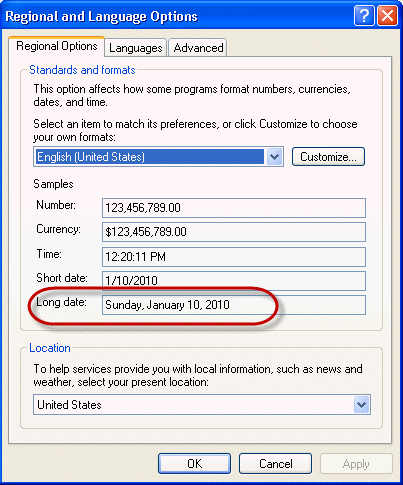
If you don't like the date format Outlook uses on-screen or in printouts, you need to change the long date format set in Windows Control panel, Regional settings.
Note, the day of the week format is controlled by the width of the Window on-screen, the month, year and date are customizable.
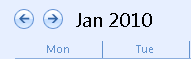
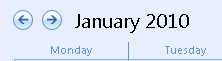
Open Windows Control panel, Regional and Language settings (called Region in Windows 7/8). Today's date is shown using the long date format setting. To change it, click the Customize button next to the language selection. Select the Date tab then select a new long date format. If the date format you want to use in not listed in the drop down, type it in.
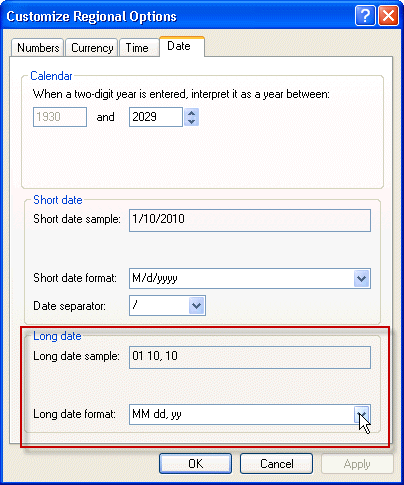
Windows 8
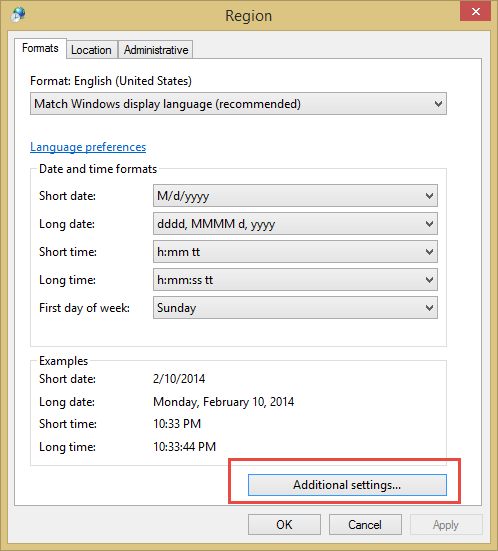
Windows 8 users can change the format using either the Control Panel, Region applet on the Desktop, or the Region and Language app in Settings. The Region and Language Settings app is limited to per-defined formats. If you want to use a custom format, you need to use Region applet in the Control Panel.
Open the Region applet in Control panel, click Additional Settings button then Date tab if you want to use a custom format.
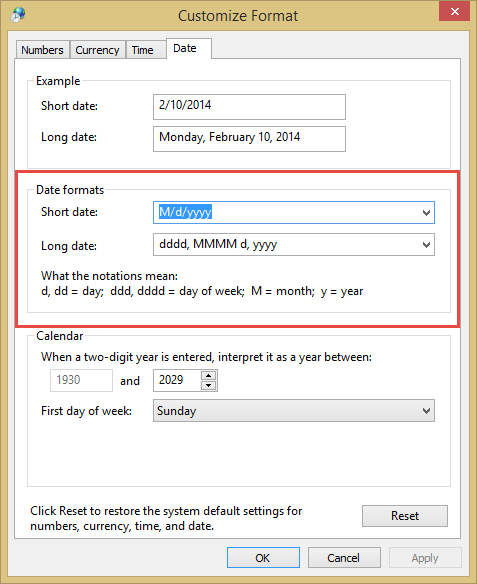

Valid day/date codes are listed below; valid date separators include comma, period, and dash. If you enter a character that is not supported, Windows will either tell you or the sample format on the dialog won't change after you hit Apply. Note that any changes you make will apply in all applications, not just Outlook.
Day of week: ddd or dddd (Sun or Sunday)
Month name: M, MM, MMM, or MMMM (1, 01, Jan or January)
Date: d or dd (1 or 01)
Year: yy or yyyy (10 or 2010)
Separators: dash, comma, period (possibly others)
Published January 28, 2011. Last updated on October 25, 2020.