How to configure Outlook to leave mail on the server

January 20, 2011
By

Many users would like to leave their e-mail on the server so they can download it from other computers or read mail using their provider’s web interface.

This setting is found only in POP3 accounts – IMAP always leaves mail on the server, as does Exchange Server (assuming you are not using a PST as the delivery location) and the Outlook Connector for Hotmail/MSN.
Leave mail on server

Leave mail on server settings

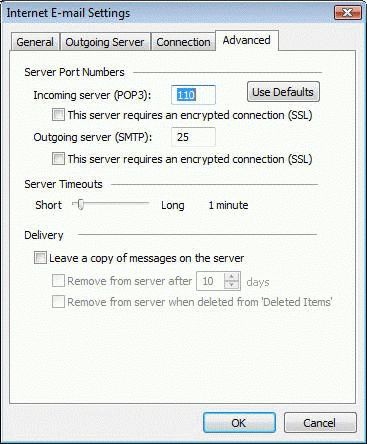
In Outlook 2007 and Outlook 2010:

  1. Go to Tools, Account Settings in Outlook 2007;  File, Account settings in Outlook 2010
  2. Select the Email account, click Change (or double-click on the email account)
  3. Click More Settings
  4. Go to the Advanced tab – leave on server settings are in the lower section
In Outlook 2003 and older:

  1. Tools, Email Accounts
  2. Select View or Change Existing Accounts
  3. Select the Email account, click Change
  4. Click More Settings
  5. Advanced tab – lower section

Tutorial: Leave mail on server in Outlook 2003 and older

Related posts:

Tip 225: Can’t Connect to Exchange Server?
How to create a “No Mail” Account in Outlook
How to always reply using a different email account
Create a new Outlook 2002 or Outlook 2003 Profile
Denied Access to Hotmail, Live, or MSN accounts in Microsoft Outlook

Tags: , , ,

« « Create a new Outlook 2002 or Outlook 2003 Profile
Import Outlook Express mail into Microsoft Outlook » »

3 Responses to How to configure Outlook to leave mail on the server

  1. Betty Brown on July 10, 2011 at 4:02 pm

    OMG this worked. Thank you. :-)

  2. Dave Schultz on August 15, 2011 at 7:28 am

    This did not help at all. when I follow the directions here in the advanced settings all it has is my name and password.
    I am tring to remove Email from hotmail using Outlook 2010.

  3. Diane Poremsky on August 15, 2011 at 7:54 am

    This tip is for POP3 accounts only. When you use the Outlook Connector, Hotmail is treated as a server-based and mail syncs to Outlook.

    If you want the mail deleted, you need to configure a POP3 account instead. Instructions are here http://www.outlook-tips.net/2011/1750/configuring-hotmail-accounts/ if you need them.

Leave a Reply

Your email address will not be published. Required fields are marked *

Connect with Facebook

*


Outlook Daily Tips by Email

*  Your Email Address:

Resources

Ask questions and share your knowledge in Outlook Forums.

More Outlook and Exchange articles available at Outlook and Exchange Solutions Center

Follow me on:

Follow @Outlooktips on Twitter   Join Outlooktips on Facebook