![Diane Poremsky [Outlook MVP]](http://www.outlook-tips.net/images/2014/MVP_BlueOnly.png)
A visitor to OutlookForums wanted to know how to change the colors in Outlook 2013's message list.
How do you change the obnoxious color of the email headers on Outlook 2013? The email headers are all this distracting and obnoxious cobalt blue.
The message list in Outlook 2010 and older doesn't have "obnoxious colors", but you can change the colors or create new formatting rules using Conditional formatting, also known as automatic formatting.
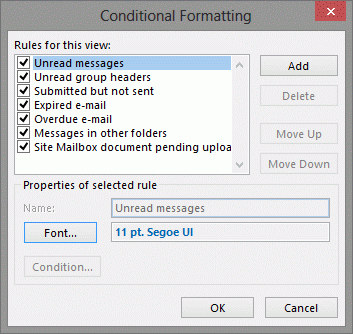
In Outlook 2013 (or Outlook 2010), switch to the View ribbon then select View Settings. Click on Conditional Formatting, Select Unread message color, the Font and select a better color.
Return to Outlook then apply the view to all folders from View > Change View > Apply Current View to Other Mail Folders.
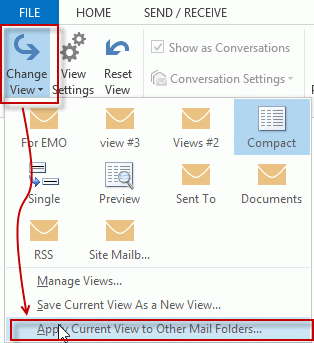
Select the folders or mailboxes you want to apply the view to.
In Outlook 2007 and older, you can change the automatic formatting by opening the Current view dialog or the Define Views dialog. You can also use the Organize dialog to Color messages.
Change Message List Color Video Tutorial
Published January 24, 2013. Last updated on January 22, 2015.