Tip 894: Changing Folder and Message List Fonts

July 27, 2011
By

Question: “I can make the folder icons larger with display settings but when I choose large or extra-large fonts, this has no effect on the fonts used in the folders or the email line items in my inbox.”

Only Outlook 2010 includes the ability to change the font used for folder names. Look on the View ribbon, Navigation Pane, Options to change the font used for folder names.

Navigation pane options:
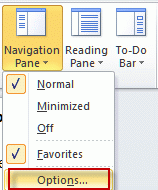
Navigation pane options

Click the Font button to change the font or font size used for folder names:
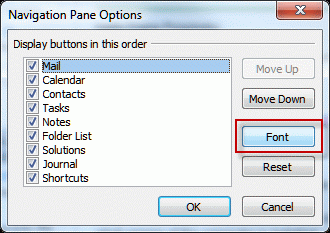
You can change the folder fonts from the Navigation pane options

You can change the message list font in all versions of Outlook.

In Outlook 2010: To change the font used in the message list click the View Settings button (also on the View ribbon). then Other Settings to change the Row fonts. You can also use Conditional Formatting to create rules that change the fonts (including sizes and colors) for messages meeting specific conditions.

In older versions: Look on the View menu for Customize current View (under either Current view menu or Arrange By, depending on your Outlook version.)

Note: changing the Current view settings may only change the view for the selected folder. To apply the changes to all folders using that view you need to go to Manage Views (Outlook 2010, on the Change view menu) or the Define View dialog in older versions (it’s on the View menu, listed at the end of the menu that lists the views). Choose the current view by name (usually Messages).

In all versions, you can also right-click on the row of field names and choose Custom… (or Customize Current View…, again, depending on your version and layout. )
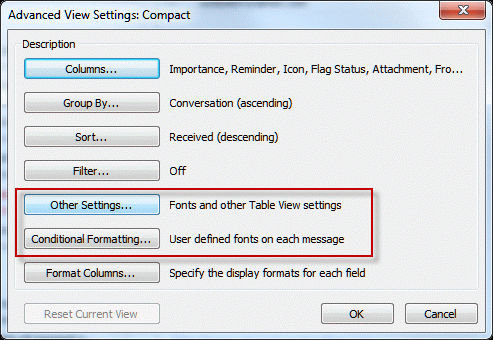
Other settings and Conditional formatting

Change the Row font in Other settings:
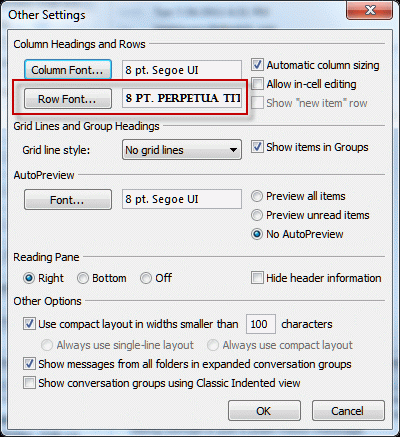
Change the message list font

Related posts:

Tags: , , , , ,

« « Tip 893: Keep Selected Outlook Subfolders Expanded
Tip 895: What Moved a Message to the Junk E-mail Folder? » »

4 Responses to Tip 894: Changing Folder and Message List Fonts

  1. Jerrry Weinfeld on July 28, 2011 at 11:51 am

    It shouldn’t be this complicated tho?

  2. Diane Poremsky on July 28, 2011 at 12:04 pm

    It only looks complicated – its actually quite easy.

  3. CAT on January 26, 2012 at 12:44 pm

    “You can change the message list font in all versions of Outlook.”

    Apparently “all versions” means all WINDOWS versions. Changing the message list, “row font”, “column font” etc. is impossible in Office 2011.

  4. Diane Poremsky on January 27, 2012 at 9:20 am

    Yes, most of the tips here are for Outlook for Windows.

Leave a Reply

Your email address will not be published. Required fields are marked *

*


Outlook Daily Tips by Email

*  Your Email Address:

Resources

Ask questions and share your knowledge in Outlook Forums.

More Outlook and Exchange articles available at Outlook and Exchange Solutions Center

Follow me on:

Follow @Outlooktips on Twitter   Join Outlooktips on Facebook


Subscribe to our Exchange Messaging Outlook weekly newsletter

*  Email Address: