![Diane Poremsky [Outlook MVP]](http://www.outlook-tips.net/images/2014/MVP_BlueOnly.png)
Outlook 2007 and Outlook 2010 have a cool feature that allows you to share your calendar with other users by publishing it to Office.com. To share the calendar you simply right click on it, choose Publish to Internet (Outlook 2007) or Share (Outlook 2010) and follow the wizard to share it with other users.
The office.com calendar server will be closed in April 2014. After it's closed you'll will need to publish it to another WebDAV server if you want to keep sharing it.
"Unsharing" it is not as obvious to many Outlook 2010 users. While Outlook 2007 has a Remove from Server command on the same menu used to share the calendar, Outlook 2010 does not. You can't right click on the calendar and choose Stop Sharing.
Some users try to delete their calendar folder, thinking that will remove it from the server and they can just make a new calendar. Nope, that won't work either; you can't delete your default calendar. All you'll get are errors.
So how do you stop sharing a calendar? Easy. Delete it from the server. There are two ways to do this: from Account Settings or from a context menu while in the Calendar folder.
Remove using Account Settings dialog
This method works from any folder in Outlook. If you have more than one published calendar, you'll see all of them listed in this dialog. If you want to delete more than one, you can select all at once (using Ctrl+ click) then delete them.
In Outlook 2010, go to File, Account Settings. In the Account Settings dialog, select Published Calendar, then select the calendar you shared and click the Delete button.
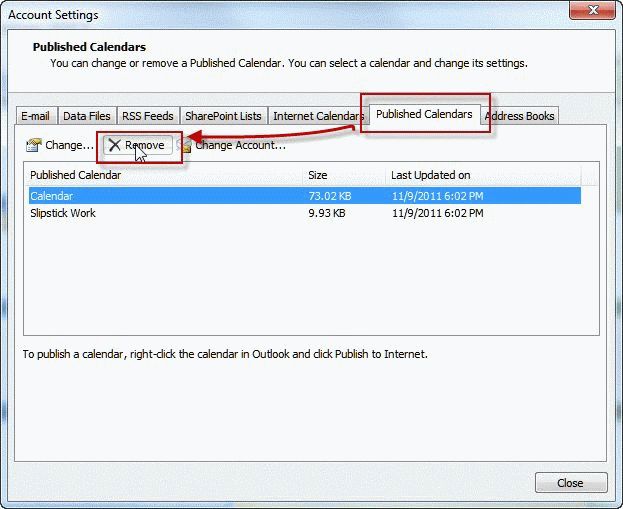
In Outlook 2007, go to Tools, Account Settings, Published Calendar tab.
Remove from the Context menu
If you are in the calendar folder, you can use the Remove from server command on the context menu.
In Outlook 2010, open the calendar you want to stop publishing online then expand the Publish Online button on the ribbon and choose Remove from server.
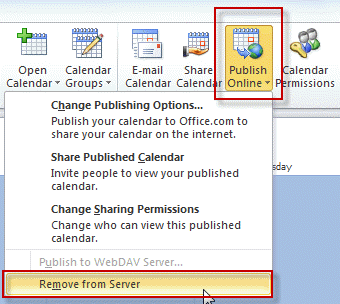
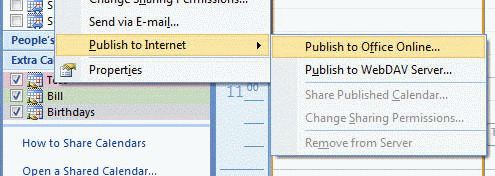
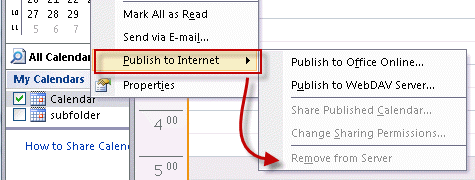
In Outlook 2007, right click on the published calendar, expand the Publish to Internet menu then choose the "Remove from Server" command. (The command is grayed out because that calendar is not published online.)
Tip: the Internet Calendars tab lists calendar you subscribed to, including calendars shared with you through Office.com.
Published November 9, 2011. Last updated on December 3, 2013.