![Diane Poremsky [Outlook MVP]](http://www.outlook-tips.net/images/2014/MVP_BlueOnly.png)
In Outlook 2010, I was able to save a few "template" messages in the draft folder and when I needed to send a message, I could click Forward and kept the original to use later. With Outlook 2013, Forward is disabled. How can I save a copy of my messages?
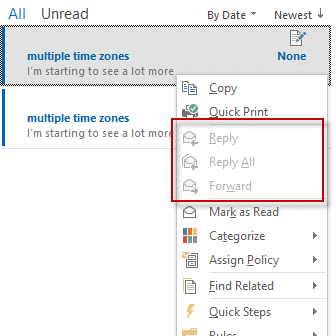
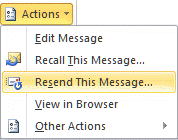
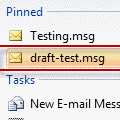
In older versions of Outlook, you could easily use Draft messages as templates, simply select a draft message and right-click Forward to create a new message. This Forward command is missing when you right click on a message in Outlook 2013. You have two options: hold Ctrl and right click or copy the draft and send the copy. (The Copy & Paste method works in all versions of Outlook.)
- Select the message.
- Press and hold Ctrl and press C then V to copy and then paste in-place.
- Complete your message in the Reading pane compose window in Outlook 2013 or double click to open in any version.
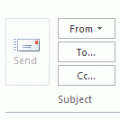
You can also open the draft message and use the keyboard shortcut Ctrl+F to forward the message. You will need to have the cursor in the To, CC, or Subject fields to use this method. However, because it only works when the draft message is open, Ctrl+C,V or Ctrl + right click, Forward is easier.
Published March 20, 2013. Last updated on April 20, 2013.