![Diane Poremsky [Outlook MVP]](http://www.outlook-tips.net/images/2014/MVP_BlueOnly.png)
"Is there any way to selectively enable/disable the read receipts option?"
You can control it either by recipient or by keywords in the subject or message body. All you need to do is create a "Check messages after sending" rule.
- Open the Rules wizard
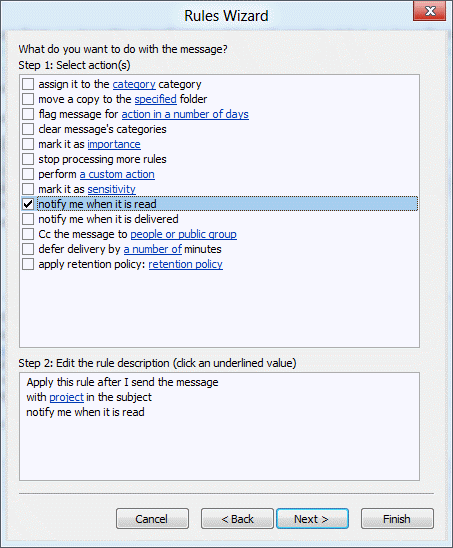
- Select the option to create a blank rule, then choose 'Check messages after sending' from the rules dialog.
- Select the conditions you want to check for and enter the criteria.
- Choose 'notify me when it is read' as the action.
- Enter exceptions, if needed, and save the rule.
Now every message you send that meets the conditions you chose will include a read receipt request.
Published February 3, 2005. Last updated on June 17, 2011.