
![Diane Poremsky [Outlook MVP]](http://www.outlook-tips.net/images/2014/MVP_BlueOnly.png)
A request I've seen quite a few times recently goes something like this:
I would like all sent emails to default to the Inbox rather than Sent Items. We tried using rules but feel it's an awkward workaround. Is there a way to set the Inbox to be the Sent Items folder, maybe using a registry hack?
Sorry, there isn't a registry hack. Rules should work just fine for all versions of Outlook: just create an 'after sending rule' to save all sent items to the Inbox then go to Tools, Options, Email Options and remove the check to Save copies of messages in the Sent Items folder.
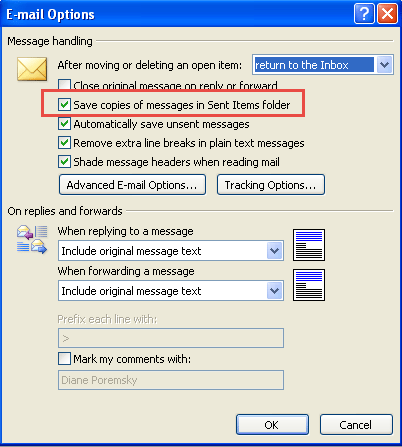
Warning: If you change the save sent items option and connect to an Exchange or IMAP server and lose connection to the server, your sent item will not be saved at all.
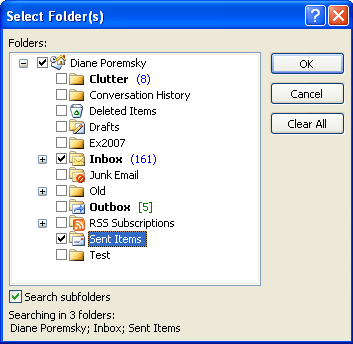
If you prefer not to use rules, and if you are using Outlook 2003 or newer, create a Search folder that searches both the Inbox and Sent Items folders. If you have an older version of Outlook, try QSearchFolders
More Information
Published February 8, 2006. Last updated on June 7, 2021.