
![Diane Poremsky [Outlook MVP]](http://www.outlook-tips.net/images/2014/MVP_BlueOnly.png)
Tip 511: Have Replies Sent To
Do you need send a message from your account but have replies go to a different address?
You can do this one of two ways: per message (all account types) or for all messages (POP3 or IMAP accounts).
Per message: Look on the Options dialog when composing a new message for the Have replies sent to field Type or select addresses from your Address book. You can enter multiple addresses if needed. This method works with all email accounts.
In Outlook 2007 and up, look on the Options tab for Direct Replies To or expand the More Options fly-out; in Outlook 2003 and older, the command is just called Options.

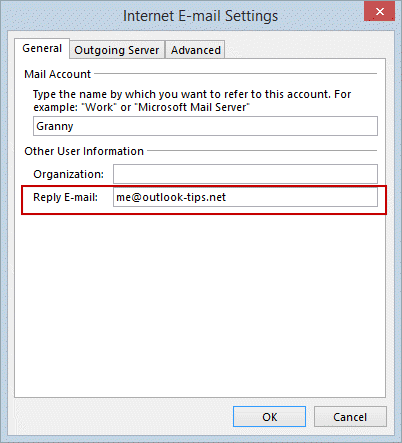 For all messages sent using POP3 or IMAP accounts: In Outlook 2010/2013, go to File, Account Settings; in Outlook 2007 and older, go to Tools, Accounts. Select your account and click Change.
Click the More settings button then enter a different address in the Reply Email field.
Note: This will not work with the Outlook Connector/EAS for Outlook.com accounts or with Exchange server as there is no “send replies to” fields to configure.
Published June 4, 2008. Last updated on December 26, 2013.