Tip 537: End times in the Calendar Printing Assistant

August 11, 2008
By

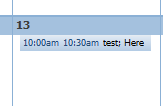
By default, the Calendar Printing Assistant (CPA) includes the end time for appointments. If you prefer more space for the Subject field you can configure the CPA to drop the end times.

In the CPA, go to File, Application settings.

Enable Drop end times to show longer subject text – this will drop end times only when there are too many appointments on a specific date.
To drop end times for all events (and use a uniform font size), enable Show all days with uniform settings.

Related posts:

« « Tip 536: Remove How to…
Tip 538: Printing Color Calendars » »

One Response to Tip 537: End times in the Calendar Printing Assistant

  1. Barb on December 19, 2011 at 7:00 am

    This does not work if you have customized the template in any way. The end times still show whether you uncheck the box for exclude end times AND Show All Days with Uniform Settings is checked.

Leave a Reply

Your email address will not be published. Required fields are marked *

*


Outlook Daily Tips by Email

*  Your Email Address:

Resources

Ask questions and share your knowledge in Outlook Forums.

More Outlook and Exchange articles available at Outlook and Exchange Solutions Center

Follow me on:

Follow @Outlooktips on Twitter   Join Outlooktips on Facebook


Subscribe to our Exchange Messaging Outlook weekly newsletter

*  Email Address: