![Diane Poremsky [Outlook MVP]](http://www.outlook-tips.net/images/2014/MVP_BlueOnly.png)
In Outlook 2007 and older, users could open an item then go to File, Properties and view a dialog that included archive options, importance and sensitivity settings, and the sent, received, and modified times.
In Outlook 2010, the properties dialog is the Message Options dialog – it has archive options, importance and sensitivity settings, expiration settings, contact and category options, Internet header, and read receipts requests, but not the modified time.
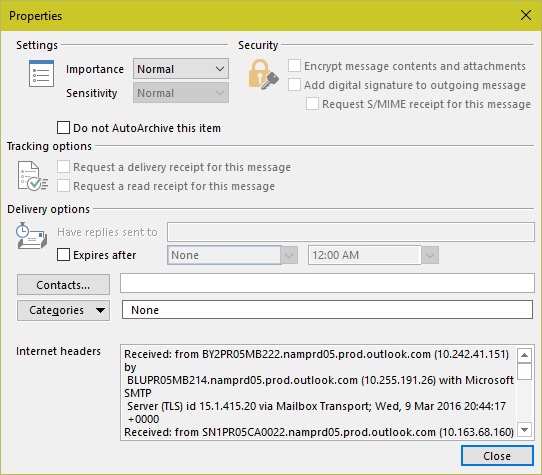
While you can create a custom view to display the modified time, if you only need to view the modified time occasionally, it's generally easier to use the Properties dialog to view it.
To view the old Properties dialog, you’ll need to customize the ribbon.
- Open an item – if you want to view the properties of an appointment, open a new or existing appointment – and go to its File, Options, Customize Ribbon (or Quick Access Toolbar).
- Select All Commands from the Choose Commands From menu at the top of the dialog.
- Click in the list below and hit Q on the keyboard to jump down the list, then look for Properties 3 or 4 entries up from the first Q command.
- There will be 3 "properties" (2 for the QAT) – you want the plain old "Properties" command.
- Select it and click Add to add it to the ribbon or QAT.
That’s all there is too it. You’ll need to repeat for each item type (contacts, tasks, etc) where you need to use the Properties dialog.
Published February 9, 2011. Last updated on March 9, 2016.