![Diane Poremsky [Outlook MVP]](http://www.outlook-tips.net/images/2014/MVP_BlueOnly.png)
We also get a lot of questions asking how to re-order Tasks, or more accurately, why users can no longer re-order Tasks. This is usually caused by changing the view so my first suggestion is verify you are using the Simple or Detailed view then reset the view.
There are two ways to re-order tasks: change the sort order or drag the tasks up and down the list.
Drag to reorder the Tasks
To use: Select a Task and drag it to a new position. A red bar indicates the position it will be dropped in.
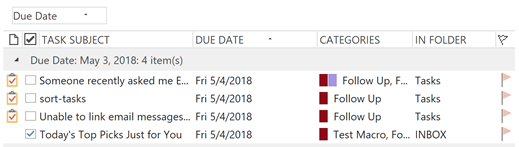
Not all views support dragging to reorder and when using one that supports reordering but not dragging to new groups, you can only rearrange within the group. For example, if you sort by Due date (no grouping), you can rearrange tasks with the same due date, but not drag to change the Due Date.
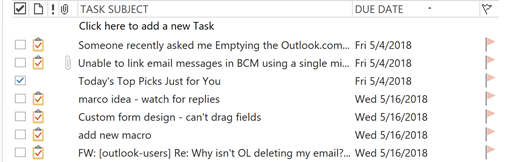
In this example in the To-Do List, I can re-order Tasks & To-Do's with a 5/4 due date but only within the 5/4 due date. You can't move a task to 5/16.
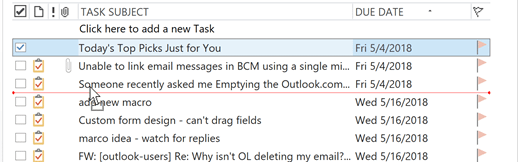
The Tasks are reordered within their due dates:
Drag in Task Folders
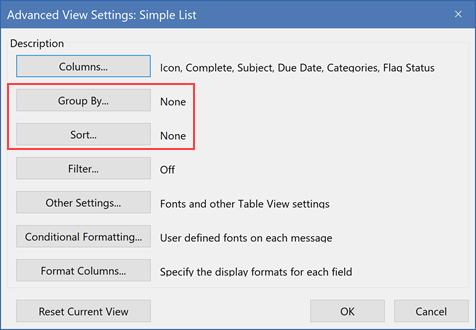
In Tasks folders (verified in Outlook 2003 and up), you need to use a view that does not sort or group in order to re-order tasks by dragging. In the View Settings dialog, you need both Group By and Sort set to None.
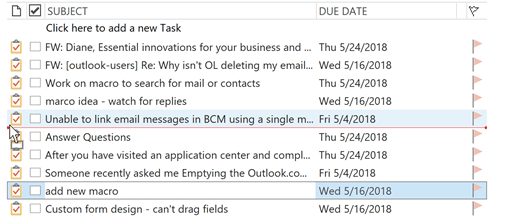
With this view, you can re-order tasks in any order, regardless of the due dates.
Drag to a new group
If you are using a traditional Group by View (with group headers) you can drag between groups to change the value of that field. Dragging between groups changes the group the Tasks belongs to. You can drag from due today to the due tomorrow group, drag to change the category, etc. Note that not all fields support dragging between groups in both the Tasks folder and To-Do List.
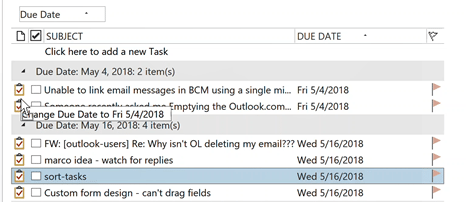
If you are in a Task folder, you can't drag to change the order within a group, but can if you are in the To-Do List.
More Information
Many users ask how to remove the To-Do List and make the Task list default when they switch to the Task navigation pane. The solution is at Always use Tasks, not Outlook’s To-Do List.
Previously published on June 13, 2012. Republished on April 18 2018
Last updated on April 18, 2018.