![Diane Poremsky [Outlook MVP]](http://www.outlook-tips.net/images/2014/MVP_BlueOnly.png)
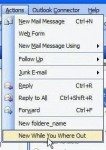
See Designing Custom Forms to learn how to open a form in design view. Due to security issues, any Outlook template (or form) containing code must be published - templates (*.oft) opened from the hard drive will not work and in some cases, will no longer open. (Templates containing custom fields need to be opened using the Choose Form dialog.) To publish a form to … [Read more...] about How to publish custom forms in Microsoft Outlook
customize
Tip 232: Color Messages Using Rules
I had a question about message rules in Outlook. In Outlook Express, I can create a message rule that highlights in color messages based on a criteria. I could not find this capability in the message rule tool of Outlook. Can Outlook do it? Outlook supports Automatic Formatting (called Conditional formatting in newer versions of Outlook), but does it using Views, not Rules. … [Read more...] about Tip 232: Color Messages Using Rules
Tip 205: Internet Favorites in Outlook 2003
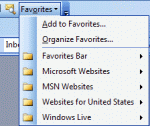
A reader asks "Is there a way to have the "Favorites" (the Internet Explorer "Favorites") show up again in both Word and in Outlook, like it did in Office 97?" Open the Tools, Customize dialog, look on the Commands tab and locate the Favorites command under Menu bar category - drag it to the menu or toolbar location where you want to place it. Ignore the Favorites … [Read more...] about Tip 205: Internet Favorites in Outlook 2003
Tip 13: Hyperlink Toolbars
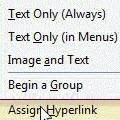
Outlook 2002 and Outlook 2003 support hyperlink toolbar buttons. You can add hyperlink to any file, application, web page or e-mail address.Open the Customize dialog using Tools, Customize. From the Commands tab, drag any button to a toolbar, except menus such as New. Right click on the button and choose Assign Hyperlink. Enter the path to the file or program you … [Read more...] about Tip 13: Hyperlink Toolbars