![Diane Poremsky [Outlook MVP]](http://www.outlook-tips.net/images/2014/MVP_BlueOnly.png)
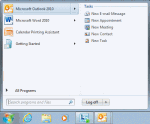
I'd like to have a shortcut in my system tray or sidebar in Windows 7 so I can create a new appointment without opening Outlook. Is this possible?Of course, its possible.You can take the easy route and use QuickIcons. This application works with all versions of Outlook to create shortcuts in the Quick Launch toolbar, which you can move or pin to the start menu or … [Read more...] about Tip 974: Using shortcuts to create new Outlook items
shortcuts
Outlook keyboard shortcuts
When you know the keyboard shortcuts, it's usually faster to use them than it is to mouse around menus. The following is a list of the many of the most commonly used shortcuts. Links to a list of all shortcuts for Outlook 2007 and Outlook 2003 is at the end. These work in Outlook's main window: Open Mail module in Navigation pane Ctrl+ 1 Open Calendar module … [Read more...] about Outlook keyboard shortcuts
Tip 854: Another SendTo shortcut method
It has been brought to my attention that I haven’t written any tips about another method for creating custom SendTo commands: editing the registry. Create a registry key using the desired shortcut name underHKEY_LOCAL_MACHINE\SOFTWARE\Classes\*\shell\Then a key under it named Command. The registry path will look something like … [Read more...] about Tip 854: Another SendTo shortcut method
Tip 850: Hyperlink codes showing
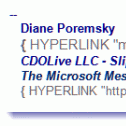
We occasionally receive questions about hyperlink code showing in email – in the form of {Hyperlink “http: // whatever” }. This means you are showing field codes. Press Alt+F9 to toggle them off and on. … [Read more...] about Tip 850: Hyperlink codes showing
Tip 571: Backup files used by Office
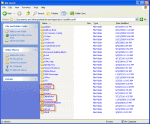
Do you need to backup (or delete) the custom.dic, signatures, templates, Outlook’s nickname cache, or stationery? Paste this command in the address bar of Windows Explorer then press Enter to open the folder path.%appdata%\MicrosoftThese files, and more, are stored in subfolders under the Microsoft folder.In Windows 7 and up, that command opens Windows Explorer to … [Read more...] about Tip 571: Backup files used by Office