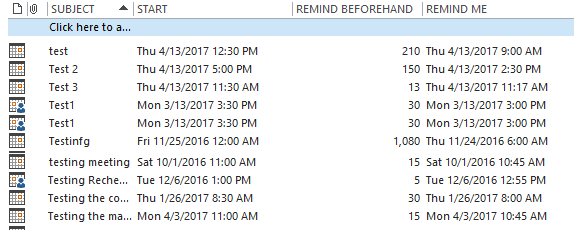
Outlook doesn't have a way to print the reminders, but you can create a custom view and print it. Tasks uses the Reminder time field, Flagged messages use the Due by field. The calendar uses the Remind Beforehand field. The only problem is you see the reminder as minutes before, as in 15 or 45, not a specific time of day, like 9:15 AM.
If you want to see the reminder time using a date and time format ("Wed 12/1/2007 2:45 PM") you can create a custom field and enter a formula that converts the minutes before to a date.
The formula you need is
DateAdd("n",-[Remind Beforehand],[Start])
For best results, I recommend you create a custom view. This will lessen the changes that the view will be reset.
How to create a custom field in a view in Outlook 2010 and newer
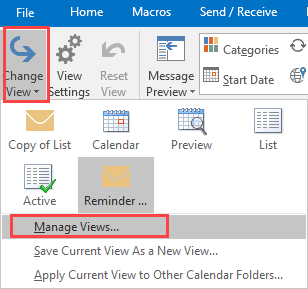
- From the View ribbon, choose Change view, Manage Views.

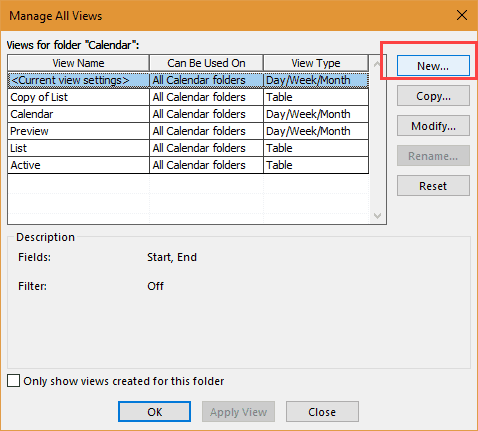
- Click New in the Manage All Views dialog.
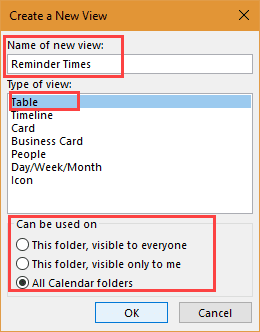
- Type in a Name for the new view and select Table view. Choose who can use the view and which folders it can be used in then click Ok.
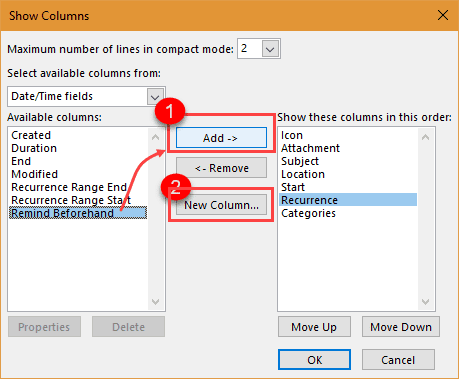
- Remove any fields you don't need in the view or print out and Add the Remind Beforehand field.
- Click the New Column button.
- Enter a name for the field and select Formula from the Type drop down (shortcut: press the F key after tabbing out of the name field)
- Type or paste the formula in the Formula field and click Ok.
- Make any other changes to the view as desired and press Ok to exit the screens and then Apply the view.
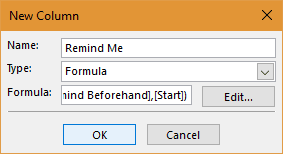
DateAdd("n",-[Remind Beforehand],[Start])
How to create a custom field in a view (Outlook 2007 and older)
- From the View menu, find the menu for Define views.
- Click New.
- Type in a Name for the new view and select Table view. Choose who can use the view and which folders it can be used in then click Ok.
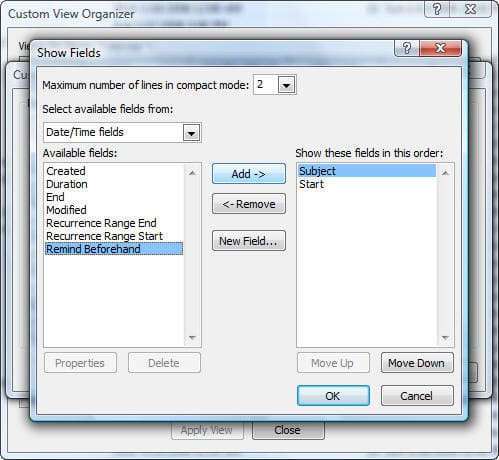
- Remove any fields you don't need in the view or print out and Add the Remind Beforehand field.
- Click the New Field button.
- Enter a name for the field and select Formula from the Type drop down (or press the F key after tabbing out of the name field)
- Type or paste the formula in the Formula field and click Ok.
- Make any other changes to the view as desired and press Ok to exit the screens and the Apply the view.
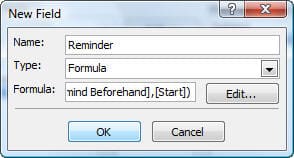
DateAdd("n",-[Remind Beforehand],[Start])

Create a Custom Field for "Remind at" Time Video Tutorial
This video was recorded in Outlook 2010, however once in the Manage View dialog (Define View in older versions), the dialogs are identical, except for the Column (Fields) button name.
Calculate hours before, not the date
The Remind BeforeHand field displays time in minutes. If you want to see it in hours (as on open appointments) you'll use the same procedure but with a formula that converts minutes to hours or days.
This formula displays minutes if the time is under 60 minutes, hours if less than 24 hours, and days for everything above 24 hours. It uses decimals as needed. For example 11000 is 7.6388888888889 days. Fortunately, under normal circumstances, you wouldn't enter an 11000 minute reminder, so decimals won't matter. However, you could round to 2 decimals if necessary.
IIf([Remind Beforehand]<60,[Remind Beforehand] & " minutes",IIf([Remind Beforehand]<1440,[Remind Beforehand]/60 & " hours",[Remind Beforehand]/1440 & " days"))
Notes
Recurring appointments will show the reminder as of the starting date, not the next (or any future) recurrences.
Carl's Birthday Mon 4/23/1923 12:00 AM 15 Sun 4/22/1923 11:45 PM
As with anything recurring, this only works as expected for the first occurrence, but it works as expected for individual appointments. Oh, and it won't show the new reminder time on snoozed reminders.
Tip: the three line AutoPreview setting and in-cell editing is under Other Settings, if you want to disable either option.

HI, there is no "remind beforehand" option to select in my outlook 2013, is there anything i can do about this? thanks!
Can one do the same with a reminder at a specific time for Tasks?
Yes, the formula will be a little different, but the bases steps are the same.