• Skip to main content
  • Skip to primary sidebar
  • Skip to footer

Outlook Tips

Learning Microsoft Outlook One Tip At A Time

Diane Poremsky [Outlook MVP]

  • Home
  • Tips Archive
  • How to...
  • Beginner
  • Outlook.com

Add EU to Outlook's International Blocked TLD list

Several users wanted to block mail coming from the top-level EU domain but “EU" isn't among the TLD's listed in International , Blocked Top-Level Domain List.
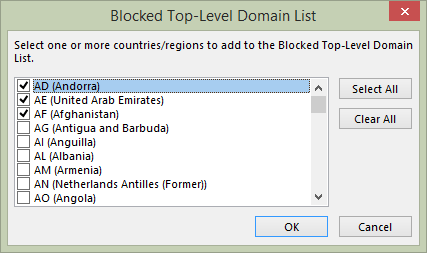
Block international domains in Outlook

While you can’t change the Blocked Top-Level Domain list, you can block EU (and UK, which is also missing). The International TLD’s that are in the Junk Email filter are stored in the registry under the Outlook profile key and it’s editable.

Before you edit the registry, make sure at least one domain is on the list in Junk Email Options, International tab, Blocked Top-Level Domain List if using Outlook 2010 or 2013; look in Tools, Options, Junk Email in Outlook 2007 and 2003.

This adds the value to the registry so it’s ready to edit. You should add all domains you want to block before editing the registry, as adding more later will remove EU. Each account in Outlook 2010 and Outlook 2013 have their own Junk Email Options and you’ll need to set it up for each account you want to add EU to.

If you’re using Outlook 2013, the profile is stored at HKEY_CURRENT_USER\Software\Microsoft\Office\15.0\Outlook\Profiles\\.

Anyone with Outlook 2010, 2007, or 2003 will have the profile at HKEY_CURRENT_USER\Software\Microsoft\Windows NT\CurrentVersion\Windows Messaging Subsystem\\.

In Outlook 2013 and 2010, the International blocked domains list is stored in a separate key for each email account in the profile. Search for 001f0424, you’ll find it under a different key for each email account that blocking at least one TLD. In Outlook 2007 and 2003, it’s in the 0a0d020000000000c000000000000046 key, also in value 001f0424.
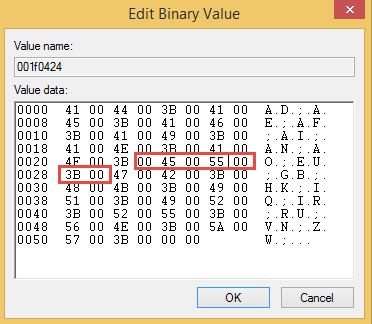
Add EU to the registry

This is a binary value. The easiest way to edit it is to add a TLD to the list that you don’t want blocked (such as ES) then select the individual letters to change them, one at a time. Remove the letter by backspacing over it then type in E or U (or just U, if you use ES).

Remember: If you add countries to the list using the Junk mail interface, you’ll need to re-edit the registry.

More Information

For detailed instructions and a video tutorial, see Add EU to the International TLD blocked list

Published August 7, 2014. Last updated on August 7, 2014.
Share this:

  • Twitter
  • Facebook
  • LinkedIn
  • More
  • Print
  • Tumblr
  • Reddit
  • Pocket
  • Pinterest

Related posts:

Tip 477: Junk Email Filtering not Working? Configure Junk settings on each mailboxTip 746: Outlook and Junk Email Settings Open the turst center to adjust the blocked downloaded settingsTip 1033: Automatically display pictures from some external sources Many users are confused by the message Outlook displays when they attempt to use IE's File, Send link to menu option. It saysTip 122: Outlook Blocked Access
Subscribe
Notify of
1 Comment
Newest
Oldest Most Voted
Inline Feedbacks
View all comments

Primary Sidebar

Search OutlookTips

Training and one-on-one assistance

Do you need help setting up Outlook or want some one-on-one training? I'm available for hire. See Training and one-on-one assistance for fees and to check availability.

All-Time Most Popular Posts

  • Windows 7 and Vista Start Search field
    How to start Outlook in safe mode
  • outlook.com icon
    Delete a message stuck in Outlook's Outbox
  • How to use Outlook's Command line switches
  • Use Cleanviews switch to reset all views
    How to Reset the View on Outlook folders
  • Where are my Outlook Files?
  • Folder paths
    How to Find Folder Paths in Outlook Mailboxes
  • How to use Scanpst.exe to repair Outlook data files
  • Outlook's Missing Holidays
  • backstage page
    Where is File tab in Outlook?
  • Icons found in the Inbox, Message Headers, and Toolbars

Footer

Recent Posts

  • Log into multiple Outlook on the web accounts
  • Keeping Hackers out of Microsoft accounts
  • Microsoft Account Closure Email
  • Outlook on the web Quick Actions moved to the right
  • Automatically sign out of Outlook.com

Recent Bug List

Microsoft keeps a running list of issues affecting recently released updates at Fixes or workarounds for recent issues in Outlook for Windows.

Office Update History

Update history for supported Office versions is at Update history for Office

Resources

Ask questions and share your knowledge in Outlook Forums.

You Might Like

Where is File tab in Outlook?
Using Two-factor authentication
Where are my Outlook Files?
How to use Outlook's Command line switches

© 2003–2026 · Outlook Tips

wpDiscuz
You are going to send email to

Move Comment