![Diane Poremsky [Outlook MVP]](http://www.outlook-tips.net/images/2014/MVP_BlueOnly.png)
This question about Outlook's Holidays came up this week.
I have Outlook 2010, and my holidays ended 12/31/13. If I add holidays they will go backwards as well as forward, I don't want the old holidays and I need to keep my past appointments, so I can't archive the calendar to remove the old holidays. And I'm sure the past holidays will be duplicated when I add the new holidays. So the question is, I know how to add a calendar by country, but is there ANY way to add just holidays 2014 forward?
Outlook doesn't give you the option to only add holidays from this date forward, it's all or nothing. You could edit the holiday file and remove old dates from the list (and change the total holiday count) but I think it's easier to add the holidays and then use Instant Search to find the holidays you want to delete. To deal with duplicates, you could remove the holidays first, then add them back, or use the Created field in Instant Search to find newly added events.
Using Instant Search to remove Holidays
To remove the old holidays using Instant Search, you'll use the criteria category:="Holiday" start:< 1/1/2014 (or whatever past date you want to use.)

You can type the search criteria in the Search Calendar field or select Categories and Start fields from the More menu. The Categorized button lists only the recently used categories; use the More, Categories menu to add the Categories field to the search pane.
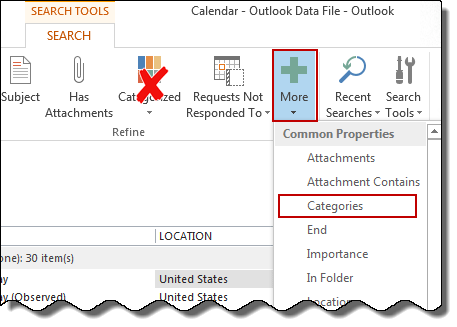
If you want to keep the past holidays on your calendar but remove the duplicates created by adding the new holidays, use category:="Holiday" start:< 1/1/2014 created: = today as your search criteria. This will show only the older events in the Holiday category that were created "today".
Select all and Delete the holidays that are found.
Remove then re-add Holidays
If you want to delete the Holidays first, then add them back, use Instant Search to find everything in the Holiday category (category:="Holiday") then select all and delete.
Or you can switch to a List view, group by Category then delete the Holiday category. After the events in the Holidays category are deleted, go to File, Options, Calendar and click the Add Holidays button.
Add and Delete Holidays Tutorial
More Information
See Outlook's Missing Holidays for updated Holiday lists.
Published January 13, 2014. Last updated on January 22, 2015.