• Skip to main content
  • Skip to primary sidebar
  • Skip to footer

Outlook Tips

Learning Microsoft Outlook One Tip At A Time

Diane Poremsky [Outlook MVP]

  • Home
  • Tips Archive
  • How to...
  • Beginner
  • Outlook.com

Tip 1112: Control which Appointments are shown in the To-Do Bar

One fairly common question from Outlook users with multiple email accounts or iCloud is how to get their appointments to show on the To-do Bar.

Outlook's To-do Bar (and Calendar Peek) display appointments in the user's default calendar. If you want it to display appointments from a different calendar on your To-Do Bar, you either need to set the Calendar's data file as your default data file or move the appointments to the calendar that is displayed on the To-do Bar.

To change the default data file in Outlook 2010 and Outlook 2013:

  1. Go to File, Account Settings.
  2. Select Data Files Tab.
  3. Select the data file that contains your calendar and click Set as Default.
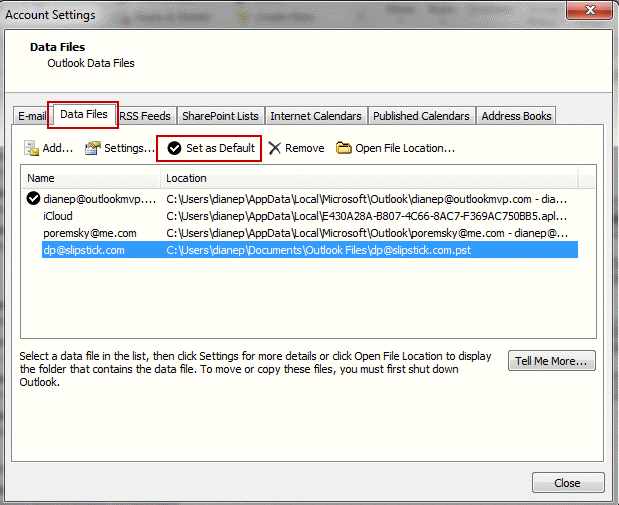
Change the default data file

If you are using iCloud, the iCloud can be set as your default data file, under certain circumstances, such as you only use POP3 accounts.

If you are unable to set the desired data file as default, move the appointments to the default calendar. To do this, set the Calendar view to a List view, select all, then copy and paste or use the Move to Folder command.

Published October 22, 2013. Last updated on October 22, 2013.

Share this:

  • Twitter
  • Facebook
  • LinkedIn
  • More
  • Print
  • Tumblr
  • Reddit
  • Pocket
  • Pinterest

Related posts:

Tip 1026: Outlook, iCloud2 and the default data file Click on any date in the Navigation CaledarTip 963: Which Calendar does the To-Do Bar use? How to move your appointments from your default Outlook Calendar into the Hotmail Live Calendar using the Outlook Connector.Tip 928: Move Outlook's Calendar into Windows Live Calendar I'm hearing from a lot of people who are having issues with Outlook and iCloud integration. Some of the problems are to be expTip 925: Outlook and iCloud Headaches
Subscribe
Notify of
0 Comments
Newest
Oldest Most Voted
Inline Feedbacks
View all comments

Primary Sidebar

Search OutlookTips

Training and one-on-one assistance

Do you need help setting up Outlook or want some one-on-one training? I'm available for hire. See Training and one-on-one assistance for fees and to check availability.

All-Time Most Popular Posts

  • Windows 7 and Vista Start Search field
    How to start Outlook in safe mode
  • outlook.com icon
    Delete a message stuck in Outlook's Outbox
  • How to use Outlook's Command line switches
  • Use Cleanviews switch to reset all views
    How to Reset the View on Outlook folders
  • Where are my Outlook Files?
  • Folder paths
    How to Find Folder Paths in Outlook Mailboxes
  • How to use Scanpst.exe to repair Outlook data files
  • Outlook's Missing Holidays
  • backstage page
    Where is File tab in Outlook?
  • Icons found in the Inbox, Message Headers, and Toolbars

Footer

Recent Posts

  • Log into multiple Outlook on the web accounts
  • Keeping Hackers out of Microsoft accounts
  • Microsoft Account Closure Email
  • Outlook on the web Quick Actions moved to the right
  • Automatically sign out of Outlook.com

Recent Bug List

Microsoft keeps a running list of issues affecting recently released updates at Fixes or workarounds for recent issues in Outlook for Windows.

Office Update History

Update history for supported Office versions is at Update history for Office

Resources

Ask questions and share your knowledge in Outlook Forums.

You Might Like

Where is File tab in Outlook?
Using Two-factor authentication
Where are my Outlook Files?
How to use Outlook's Command line switches

© 2003–2026 ยท Outlook Tips

wpDiscuz
You are going to send email to

Move Comment