![Diane Poremsky [Outlook MVP]](http://www.outlook-tips.net/images/2014/MVP_BlueOnly.png)

Update: If you use a 4 or 5 digit area code Outlook will not format the numbers. In the US, any 4 digits will do; if it doesn't work for you, try using 99999.If you are one of the users who doesn’t like how Outlook formats numbers or you sync with a PDA that doesn’t understand formatted phone numbers, you can temporarily stop the formatting by pausing the Telephony … [Read more...] about Tip 608: More Number Formatting
Tips Archive
Tip 607: Remove Stationery
“I installed Outlook 2007 and when I go to send an email it automatically has the grid paper stationary which I DO NOT want to be on my emails. I can change it in each individual email but when I go to change the default option for every email in the "Options.." dialogue box, it tells me that themes are not installed, therefore not allowing me to choose a default … [Read more...] about Tip 607: Remove Stationery
Tip 606: Autoreply Rules
We frequently get questions that go something like this: I want to block the receipt of one specific person's email, but I want them to get a message saying that their email has been blocked, or something to that effect. Is this possible? Yes, it’s possible but that doesn’t mean it’s a good idea. You could send an autoreply using a rule that also deletes their messages but … [Read more...] about Tip 606: Autoreply Rules
Tip 605: Multi-day Appointments and Events
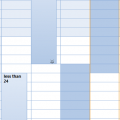
When you have a timed appointment spanning 2 days at the top of the calendar, the appointment is longer than 24 hours.If the appointment is under 24 hours, the appointments will be split, appearing like single appointments on each day. … [Read more...] about Tip 605: Multi-day Appointments and Events
Tip 604: Using Send To menus
When you use a File, Send to menu in other applications, Outlook won’t let you do anything until you either send the message or save and close it. Saving the message places it in the Inbox, not drafts.This is a limitation of SimpleMAPI.The Send To command uses SimpleMAPI which only loads a stub of Outlook and launches a modal form. Modal forms must be closed before the … [Read more...] about Tip 604: Using Send To menus