![Diane Poremsky [Outlook MVP]](http://www.outlook-tips.net/images/2014/MVP_BlueOnly.png)
Outlook 2013 introduced a number to changes to existing features we've all grown to love and most of the changes aren't really for the better. Like the removal of the Quick Click category field in the message list. It is present if you turn off the reading pane to drop to a one line view, but that is not practical.
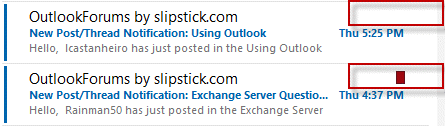
In previous versions of Outlook there were little icons next to the flag icon in the messages pane. Similar to the flag icon you could click on the category icon to set the Quick Click category, or right click on the icon to select other categories. I can't figure out how to display the category icon in Office Outlook 2013. The only way I can get to categories is by using the Ribbon. I can define a Quick Click category, but I can't click a message and assign it (besides right-click, Categories).
There are a couple of solutions:
- Assign keyboard shortcuts to categories. Use Ctrl+F2 as the shortcut for the quick click color category.
- Use a Quick Step to assign categories.
If these methods aren't acceptable, there are three more options: use an add-in that displays a list of categories to choose from, use a macro to apply the color category and add it to the ribbon, or use a single line view.
For a list of Category add-ins, see Outlook's Color Categories

You can use the macro below to create a button on the ribbon or QAT for one-click access to a specific category. While it's not practical to create macros for a large number of categories, setting up buttons for a couple of categories will work well.
To use this macro:
- Open the VBA Editor using the Alt+F11 key.
- Right-click on Project1 and choose Insert > Module.
- Paste the code into the new module, one copy for each category you want to add to the ribbon.
- Edit the name of the Sub and the category name in Item.Categories.
- Customize the QAT or ribbon with the macro. (File, Options, Customize Ribbon or Quick Access Toolbar)
Select a message and click the button to apply that category to the message.
Public Sub AddSlipstickCategory()
On Error Resume Next
Dim Item As Object

Set Item = Application.ActiveExplorer.Selection.Item(1)

Item.Categories = "Slipstick"
Item.Save

End Sub
Single line view
The default message list format is Compact view with the reading pane on the right. This view displays the fields on 2 rows and supports the various Arrangement options, as seen in the first screenshot on this page.
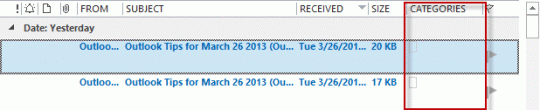
If you use a single line view, common when the reading pane is on the bottom, you will see the Categories column and Quick click works in it.
Published November 16, 2012. Last updated on April 25, 2013.