![Diane Poremsky [Outlook MVP]](http://www.outlook-tips.net/images/2014/MVP_BlueOnly.png)
One thing I love about helping people are the chuckles from the creative ways they express their annoyance with Outlook features. I'm a firm believer in laughter is the best medicine and I can count on getting a healthy dose every day.
How does one disable the Bilingual dictionary in Outlook 2010? When I hover the mouse over an email message this very aggravating dictionary keeps popping up. Can someone please inform me how to disable this thing before I heave myself out in front of a parked bus!!!
You don't have to do anything that drastic.
The Mini Translator is a new feature in Outlook 2010 and up. When the Mini Translator is enabled, the Bilingual Dictionary dialog comes up when you hover over a word in the reading pane a little too long.
It will be semi-transparent when it first comes up and you need to move the mouse over it to view it.
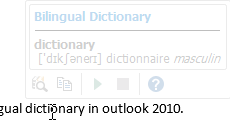
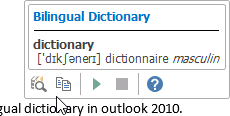
This annoying dialog can be disabled on the Review > Translation command.
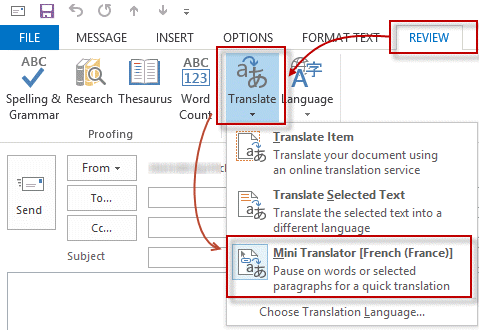
- Open a new message and click in the message body.
- Select the Review tab.
- Expand Translation button.
- Click on Mini Translator to disable.
The Mini Translator command is a toggle and if selected/enabled, it will be highlighted. Click to disable it. Click it again to enable it.
More Information
Using the New Mini Translator in Office 2010 (TechNet Blogs)
Office 2003 Tool: Add a Bilingual Translation Dictionary Service to the Microsoft Office System (Microsoft Downloads)
Accessing bilingual dictionaries in Office 2007 (MSDN Blogs)
Published March 11, 2013. Last updated on June 7, 2021.