• Skip to main content
  • Skip to primary sidebar
  • Skip to footer

Outlook Tips

Learning Microsoft Outlook One Tip At A Time

Diane Poremsky [Outlook MVP]

  • Home
  • Tips Archive
  • How to...
  • Beginner
  • Outlook.com

Tip 121: Bolded Dates

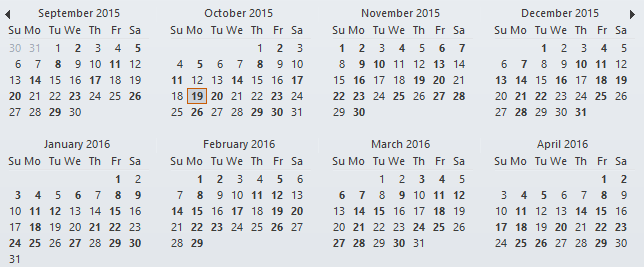
bolded dates on calendar
A question that comes up often is why Outlook's calendar doesn't mark all dates that contain appointments in bold in the small thumbnail calendars.

This tip applies to Outlook 2010 and older. The To-Do bar in Outlook 2013 and up doesn't use bolded dates; only the thumbnail calendar in the Calendar navigation pane has bolded dates.

Outlook bolds the dates that contain appointments (not all day events) in your default calendar, for a period 10 months ahead and 2 months in the past (a total of 12 months).

You’ll also need to mark the appointments (or all day events) as Busy, Out of Office, or Tentative – items marked as Free won’t bold the calendar.

Can you configure the number of months shown? No, it's hard coded and can't be changed. The reason for the 12 month limitation is because it would take too long and require too many resources for Outlook to bold all dates containing appointments, especially on calendars that cover several years. Slower computers or calendars with a lot of current appointments already require several seconds to display bolded dates.

In current versions of Outlook, appointments in the selected calendar(s) in your mailbox or profile will show bolded dates. This includes your calendars from MSN/Hotmail or a PST file but not shared calendars from other user’s mailboxes.

Can you change the colors or font so the bolded dates are easier to see? No. it's hard-coded. Changing Windows themes might help, but that will affect all Windows programs.

Published April 14, 2004. Last updated on April 4, 2016.
Share this:

  • Twitter
  • Facebook
  • LinkedIn
  • More
  • Print
  • Tumblr
  • Reddit
  • Pocket
  • Pinterest

Related posts:

Outlook 2002 introduced Labels to the calendar, allowing you to display appointments in your Day/Week/Month view using different cTip 3: Calendar Views Tip 6: Printing a Calendar Tip 48: Go To Date Are you using Outlook 98 or 2000 in Internet Mail Only mode and are going to upgrade to Outlook 2002 or 2003? When you do, createTip 83: Upgrading Profiles
Subscribe
Notify of
3 Comments
Newest
Oldest Most Voted
Inline Feedbacks
View all comments

Primary Sidebar

Search OutlookTips

Training and one-on-one assistance

Do you need help setting up Outlook or want some one-on-one training? I'm available for hire. See Training and one-on-one assistance for fees and to check availability.

All-Time Most Popular Posts

  • Windows 7 and Vista Start Search field
    How to start Outlook in safe mode
  • outlook.com icon
    Delete a message stuck in Outlook's Outbox
  • How to use Outlook's Command line switches
  • Use Cleanviews switch to reset all views
    How to Reset the View on Outlook folders
  • Where are my Outlook Files?
  • Folder paths
    How to Find Folder Paths in Outlook Mailboxes
  • How to use Scanpst.exe to repair Outlook data files
  • Outlook's Missing Holidays
  • backstage page
    Where is File tab in Outlook?
  • Icons found in the Inbox, Message Headers, and Toolbars

Footer

Recent Posts

  • Log into multiple Outlook on the web accounts
  • Keeping Hackers out of Microsoft accounts
  • Microsoft Account Closure Email
  • Outlook on the web Quick Actions moved to the right
  • Automatically sign out of Outlook.com

Recent Bug List

Microsoft keeps a running list of issues affecting recently released updates at Fixes or workarounds for recent issues in Outlook for Windows.

Office Update History

Update history for supported Office versions is at Update history for Office

Resources

Ask questions and share your knowledge in Outlook Forums.

You Might Like

Where is File tab in Outlook?
Using Two-factor authentication
Where are my Outlook Files?
How to use Outlook's Command line switches

© 2003–2026 · Outlook Tips

wpDiscuz
You are going to send email to

Move Comment