![Diane Poremsky [Outlook MVP]](http://www.outlook-tips.net/images/2014/MVP_BlueOnly.png)
How frequently should Outlook check for new mail on the server?
For optimal service in both Outlook and on the mail server, no less than 8 – 10 min, longer if you use a dial-up account. Be kind to your email provider – every min or two is too frequent!
Thanks to changes in versions of Outlook released since the initial publication of this tip in 2005 and faster Internet connections, you shouldn't have issues with Outlook set to check for new mail every 5 minutes.
Why? Three reasons:
- Outlook doesn't mark mail as downloaded until after it finishes downloading all mail. If Outlook starts a new collection before it's finished with the first one you may end up with duplicates or Outlook will lock up and you'll need to reboot the computer. This is less of a problem with newer versions of Outlook and faster Internet connections.
- Be kind to your email host. Checking for new mail uses resources on the server. If every account holder would check for new mail every minute, the email host would need new servers to handle the load, or fewer subscribers.
- Don't hog the connection – leave it free so other subscribers can use it. If everyone tried to check mail at once, some users would experience timeouts. This is because there are a limited number of connections to the mail server. By using a higher setting, the chances of everyone checking at once is lowered and everyone has a better experience.
If you feel your email is so important that you or your business would die with checks less often than 8 minutes, then email isn't the right medium for you. Use instant messaging or the telephone for urgent matters that can't wait 10 minutes.
How to check your settings
In any version of Outlook, press Ctrl+Alt+S on your keyboard to open the Send/Receive Groups dialog. (In Outlook 2010 or Outlook 2013, it's also under the Send / Receive tab, Send/Receive Groups. Select a group (most users will have just one) and adjust the Schedule an automatic send and receive every mm minutes setting.
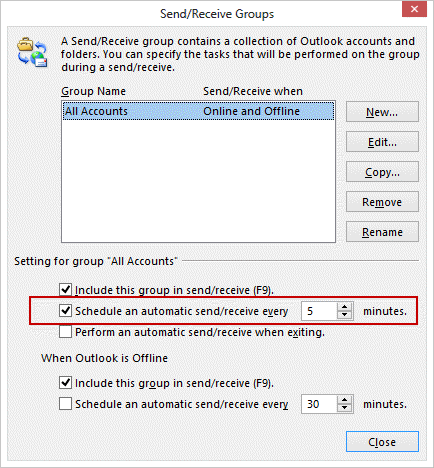
If you have multiple email accounts and want to use different automatic settings, you can create New groups.
Note: Folders in IMAP accounts will refresh when you open the folder, irregardless of the automatic setting. Exchange server accounts do not use this setting, mail syncs as it arrives on the server. Outgoing mail can be sent immediately; if you don't use Send Immediately, its sent on the next send and receive.
Published October 21, 2005. Last updated on November 6, 2013.