• Skip to main content
  • Skip to primary sidebar
  • Skip to footer

Outlook Tips

Learning Microsoft Outlook One Tip At A Time

Diane Poremsky [Outlook MVP]

  • Home
  • Tips Archive
  • How to...
  • Beginner
  • Outlook.com

Tip 906: Opening Attachments Removes & and * from the Filename

When a document with a filename containing either an ampersand or an asterisk character in it arrives attached to an email, the characters disappear from the filename when you open the attachment.

filename is changed

An Outlook user had this to say: "When you first open the e-mail and see the attachment, the filename looks fine and has all its characters. However, when you open the document, the '&' and the '*' are removed. Even if you do a 'Save as' the characters are still missing."

In the case of the asterisk (*), it's because it's not a valid filename character in Windows, Asterisks will always be removed when you open or save an attachment containing this character.

Outlook removes the ampersand (&) if you open the attachment from the message. If you save the file using Save as (or Save All Attachments) from the message, the filename should retain the ampersand. Open the saved attachment from Windows Explorer to retain the & in the filename.
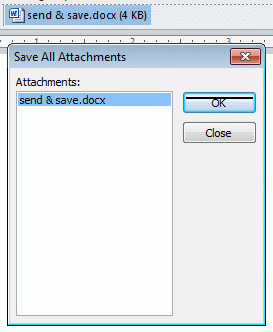
Save all attachments

Published August 25, 2011. Last updated on September 16, 2013.

Share this:

  • Twitter
  • Facebook
  • LinkedIn
  • More
  • Print
  • Tumblr
  • Reddit
  • Pocket
  • Pinterest

Related posts:

This tip applies to Outlook 2007 and older. The procedure is slightly different in Outlook 2010. See Editing Attachments in OutlooTip 43: Save Changes to Attachments Earlier this week, the question was about how to send a message to a group of people but only send the attachment to the recipientTip 670: Reply with attachment Receiving Read Only Attachments A reader asks: "Every attachment I receive is marked "read-only" by default in OutlQuestions about Read Only Attachments paperclip iconTip 27: Attachments and the SecureTemp Folder
Subscribe
Notify of
0 Comments
Newest
Oldest Most Voted
Inline Feedbacks
View all comments

Primary Sidebar

Search OutlookTips

Training and one-on-one assistance

Do you need help setting up Outlook or want some one-on-one training? I'm available for hire. See Training and one-on-one assistance for fees and to check availability.

All-Time Most Popular Posts

  • Windows 7 and Vista Start Search field
    How to start Outlook in safe mode
  • outlook.com icon
    Delete a message stuck in Outlook's Outbox
  • How to use Outlook's Command line switches
  • Use Cleanviews switch to reset all views
    How to Reset the View on Outlook folders
  • Where are my Outlook Files?
  • Folder paths
    How to Find Folder Paths in Outlook Mailboxes
  • How to use Scanpst.exe to repair Outlook data files
  • Outlook's Missing Holidays
  • backstage page
    Where is File tab in Outlook?
  • Icons found in the Inbox, Message Headers, and Toolbars

Footer

Recent Posts

  • Log into multiple Outlook on the web accounts
  • Keeping Hackers out of Microsoft accounts
  • Microsoft Account Closure Email
  • Outlook on the web Quick Actions moved to the right
  • Automatically sign out of Outlook.com

Recent Bug List

Microsoft keeps a running list of issues affecting recently released updates at Fixes or workarounds for recent issues in Outlook for Windows.

Office Update History

Update history for supported Office versions is at Update history for Office

Resources

Ask questions and share your knowledge in Outlook Forums.

You Might Like

Where is File tab in Outlook?
Using Two-factor authentication
Where are my Outlook Files?
How to use Outlook's Command line switches

© 2003–2025 ยท Outlook Tips

wpDiscuz
You are going to send email to

Move Comment