![Diane Poremsky [Outlook MVP]](http://www.outlook-tips.net/images/2014/MVP_BlueOnly.png)
Sending digital pictures by email can result in huge message sizes which may be bounced by the sender or recipient's email server. To avoid problems, you should reduce the size of image attachments before you send them.
While its easy to reduce the size of an image in any image editing program, including the Picture Manager that comes with Outlook 2003 and up, it takes a few minutes to reduce the photo and save it. You can save a lot of time if you let Windows or Outlook reduce the file size as you attach the image instead of resizing it yourself.
If the recipient will be printing the photo you may want to leave the attachment at the original file size.
That brings up a question a reader had about resizing pictures in Outlook 2010. He upgraded from Outlook 2003. Outlook 2003's Attachment pane has an option to re-size attached photos which is displayed by default when you first attach an image file to a message.
 In Outlook 2003, click the Attachment Option button to the right of the attachment field to display the Attachment Options pane.
Outlook 2010 and Outlook 2013
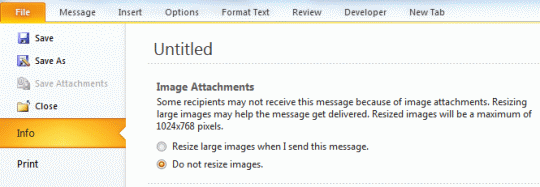
Outlook 2010 and 2013 don't use the attachment pane; they have an option to re-size attached images on the File tab.
After using Outlook 2010 or 2013's Insert File command, click on the File tab and at the top of the page is a the option to re-size the image. Outlook 2010/2013 has just one size option, 1024×768 pixels, while it's not the smallest size, it is the most popular image size.
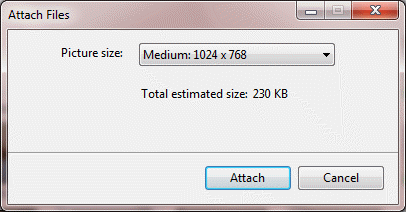
Note: If you open Windows Explorer and use the Send to MailRecipient command, Windows will offer to re-size the image.
In Outlook 2010, you need to go to the File tab, Info command after attaching the image. You can choose between resizing the attachment or keeping the original size. The re-size options are limited (to one!) compared to Outlook 2003, but most people would choose 1024 x 768 anyway. If you need better control over the file size, re-size it using an image editor program or use Windows Explorer's Send to MailRecipient command.
Outlook 2007
Outlook 2007 has an Attachment pane too, although it's not displayed by default when you insert an image. You can display the Attachment pane by clicking the expand button in the Include section of the Home ribbon. In Outlook 2007, expand the Include chunk to enable the Attachment Options pane.

Using Send to Mail Recipient in Windows Explorer
When you right click on one or more images in Windows Explorer and choose Send to > Mail Recipient, the Windows image re-size app comes up, allowing you to reduce the size of the image.
Published September 13, 2011. Last updated on May 23, 2013.