![Diane Poremsky [Outlook MVP]](http://www.outlook-tips.net/images/2014/MVP_BlueOnly.png)
Nothing says "impersonal and uncaring" as much as form letter sent to a group of people, whether it's your annual Holiday letter to friends or a form sent to clients and potential clients. It doesn't matter whether it's a traditional mailed letter or sent via email, it's still impersonal. It doesn't have to be this way. Customizing form letters to make them appear more personal and directed specifically at the recipient isn't hard.
It's called Mail Merge, and you start it from Outlook using your contact data.
The first step is picking the contacts you want to include in the merge. You can hold the control or shift key as you select contacts or use custom views to display the contacts you want to use. This is a good reason to use categories–then you can group by category and select the contacts.
Next, click the Mail Merge button (Outlook 2010/2013) or select Tools > Mail Merge in older versions to open the Mail Merge dialog, and you're almost done.
Choose whether to use all contact fields or only those fields in the view. Then choose the type of document to merge and select OK to complete the merge.
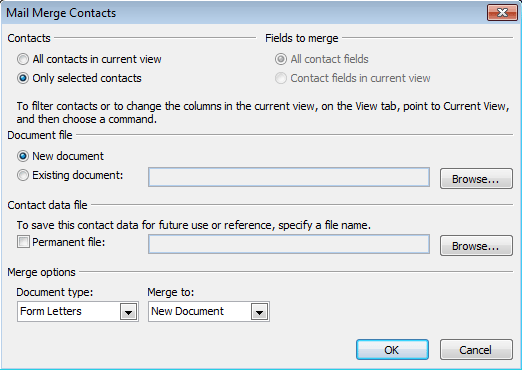
The selected contacts are exported to a document called OMM.doc for Word to use as the data source.
- Keep in mind that Outlook offers better filtering capability than Word. So, while you can begin a mail merge in Word, it's easier to start it in Outlook.
- Once in Word, you can change the document type and Merge to document type.
- "Contact fields in the current view" means fields in the view, including any you need to scroll to see, not just the fields you can see on screen.
- You can save the data source document to use again and again, even if you didn't select the option on the mail merge dialog. Use search to find OMM*.doc and copy it to your documents directory.
All that's left to do now is prepare your form letter.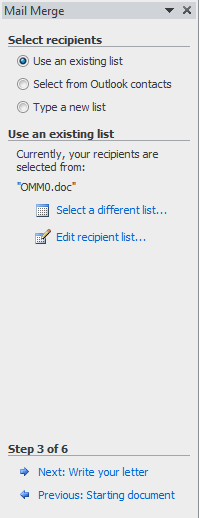
If you're new to mail merge, use the Mail Merge Wizard Task pane to lead you through the final steps.
Click on Start Mail Merge > Step by Step Mail Merge Wizard in Outlook 2007 and up (Mailings tab). In older versions of Outlook you'll use View > Task Pane to show the Mail Merge task pane in older versions.
Beginning the merge using Outlook's Mail Merge command puts you at Step 3 in the Mail Merge wizard.
You can go back to Step 1 if you need to select a different merge type or make other changes.
When you've outgrown the Mail Merge wizard, use the Mailings ribbon tab or the Mail Merge toolbar to insert fields, select the document to merge to, and the ABC button to display your data in the merge fields.
After you're finished composing your message, send the document to the printer or email it.
More Information
If you need to merge to labels, see Mail merge to Labels
Use Word's Mail Merge toolbar to access the advanced mail merge options.
Published May 13, 2011. Last updated on October 25, 2020.