![Diane Poremsky [Outlook MVP]](http://www.outlook-tips.net/images/2014/MVP_BlueOnly.png)
 Note: You can use this method to apply any changes to all folders using the same view. It's not limited to the group by feature.
While this method also works with Outlook 2010, you can create a custom view and apply it to all folders. Look for the Apply to all folders option on the View ribbon, Change View button. Apply to all folders is useful if you have custom views you don't want to lose.
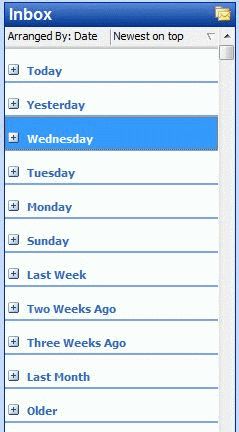
So you don't like the new grouping views in Outlook? While I recommend you give yourself two weeks to get used to the new interface before making changes, it is possible to turn off some of the new interface features in Outlook, such as the Group by view.
Before starting to customize the view, you need to make sure you've removed all previous customizations on all folders that use the view. To do this, go to Start menu, Run, and type
outlook.exe /cleanviews
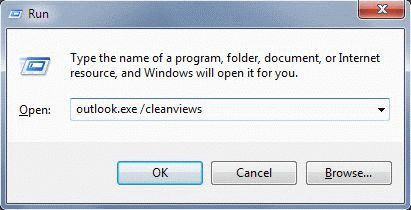
Using the /cleanviews switch will delete *all* custom views you have, but is a necessary step to insure the changes to the view apply to all folders.
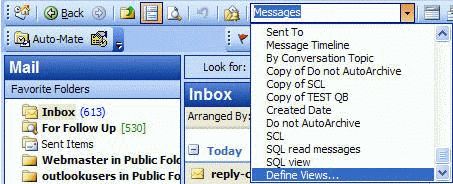
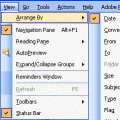
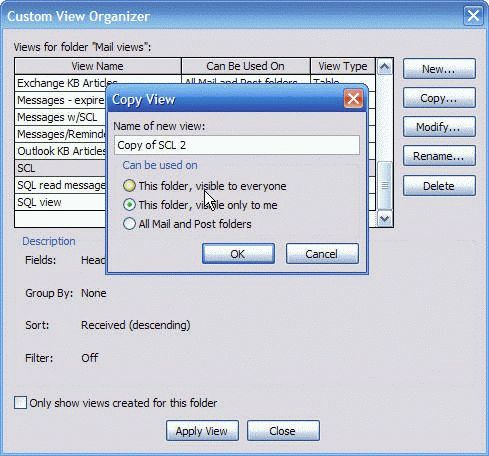
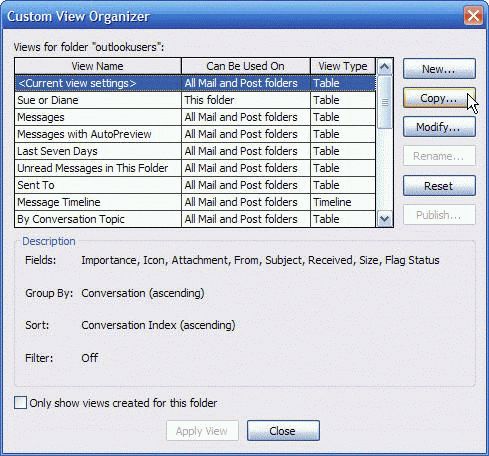
Next, find the Define views menu. In Outlook 2003 and 2007, look on the Advanced toolbar, at the bottom of the Current views drop down command or browse to the View, Arrange by, Current view menu to find it. In Outlook 2010, go to the View ribbon, Change Views, Manage View.
Select the view *by name*, not using <Current View Settings>, otherwise, the view will apply only to the currently selected folder. (When you click on Arrange by and Customize or Outlook 2010's View Settings… only the view for the current folder is edited.)
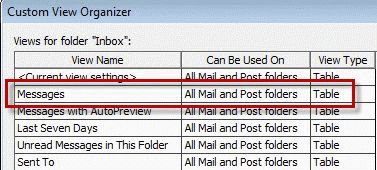
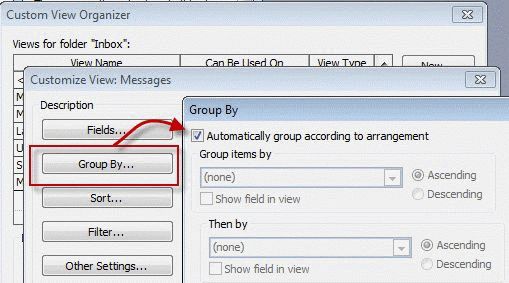
Click Modify button to open the Customize view dialog, then Group button.
Uncheck Automatically group according to arrangement and Ok your way back to the view. Grouping is now disabled for this view. Repeat for each named view that you want to edit.
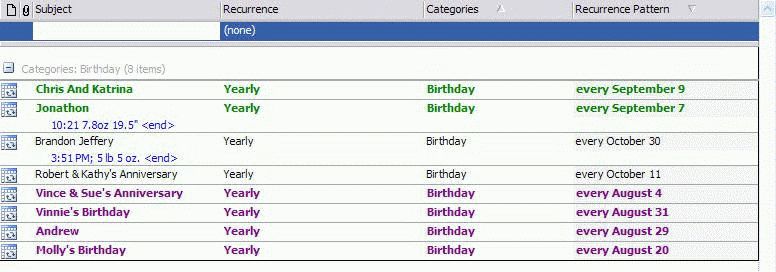
To enable grouping on a folder, click on the row of field names at the top of the message list and choose Show in groups from the bottom of the menu. (This will enable only for the current folder.)
You can use this method to change a default view for each folder using the view. Because Outlook often creates 'one-off' views when you change a current view, you need to use cleanviews to remove all custom views before starting.
You may need to apply a different view to a folder then apply this one for it to take affect.
Customize a Global View Video Tutorial
For more information on restoring the classic interface, see Managing the Outlook 2003 Interface
Administrators
Administrators can deploy Outlook with grouping disabled for all users. See the following articles for more information:
Using the OCT: Disable the Group By feature for e-mail messages in Outlook 2007
Published May 14, 2011. Last updated on October 25, 2020.