![Diane Poremsky [Outlook MVP]](http://www.outlook-tips.net/images/2014/MVP_BlueOnly.png)
How can I get Outlook to automatically send and receive when I open the program? I have to press F-9 or go to the menu bar TOOLS/SEND AND RECEIVE.
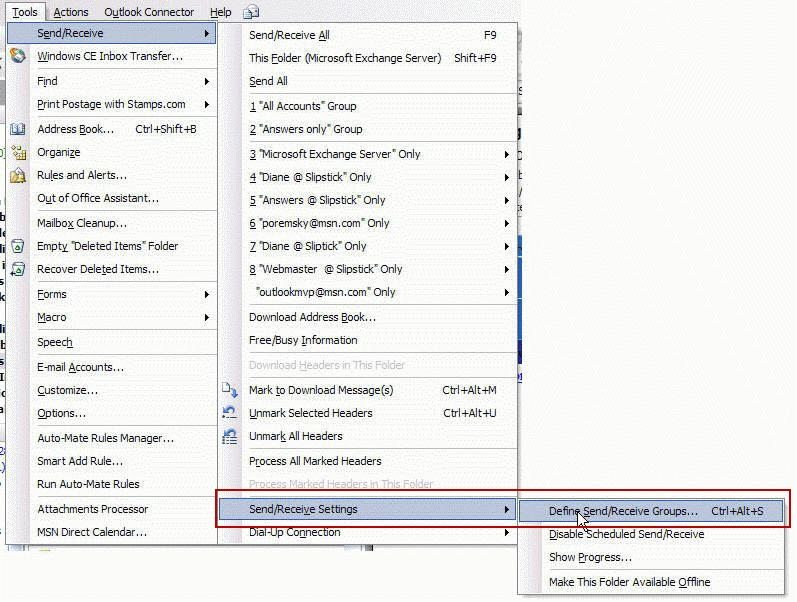
The method is the same for all versions of Microsoft Outlook. You need to browse to Tools, Send and Receive, Send /Receive Settings and find Define Send and Receive Groups or, for a faster keyboard shortcut, press Ctrl+Alt+S on your keyboard to open the dialog. (In Outlook 2010, go to File, Options, Advanced, Send/Receive, or press Ctrl+Alt+S.)
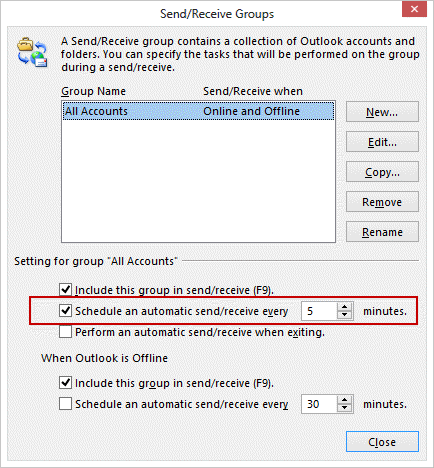
Add a check to the option to check every xx min, Schedule an automatic send and receive every mm minutes setting and adjust the time.
When this is enabled, Outlook will check for new email every time you open it and every xx minutes while it remains open.
Note: You should not check it more often than every 8 -10 min because it creates too much load on your mail server and a large amount of mail will cause some versions of Outlook to hang if it is still downloading mail when the next automatic mail pass starts.
More Information
If you want send mail immediately, this is changed in Tools, Options, Mail setup tab; in Outlook 2010 or Outlook 2013, go to File, Options, Advanced to enable (or disable) Send immediately when connected.
Published May 15, 2011. Last updated on May 5, 2017.