How to start Outlook in safe mode

May 16, 2011
By

When something isn’t working right with Outlook we often tell users to start Outlook in safe mode or using the /safe switch. This loads Outlook without many of the customization files and add-ins loaded. If Outlook works correctly in Safe mode, the problem is with one of your add-ins or customization files.

You can use one of these methods to start Outlook using a command line switch:

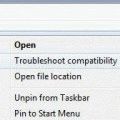
  • Hold Ctrl key as you click the Outlook shortcut.
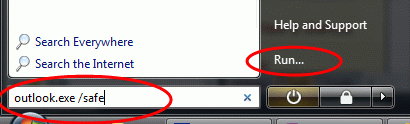
  • If you use Vista, type outlook.exe /safe in the Start Search field on the Start menu and press Enter.
  • If Run…. is shown on your start menu (any version of Windows) click it and type outlook.exe /safe in the Open field and click OK.
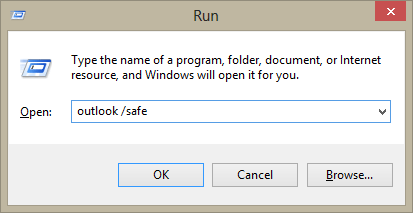
  • Hold the Windows key and press R, then type outlook.exe /safe in the Open field and click OK.
Windows 7 and Vista Start Search field

Run dialog

In most cases you only need to type outlook or outlook.exe, but occasionally Windows complains that it can’t find the file. When this happens you need to use the full path to Outlook.

The default location is usually C:Program FilesMicrosoft OfficeOfficeXX, where XX is your version number. You can browse to it or look on the Quick Launch shortcut for the file path. Do this by right click on the Outlook shortcut on Quick Launch toolbar and choosing Properties. The default switch is /recycle, you can replace this with /safe, press Apply then double-click on the shortcut to run it (leave the dialog open). After Outlook opens, replace safe with recycle and click OK.
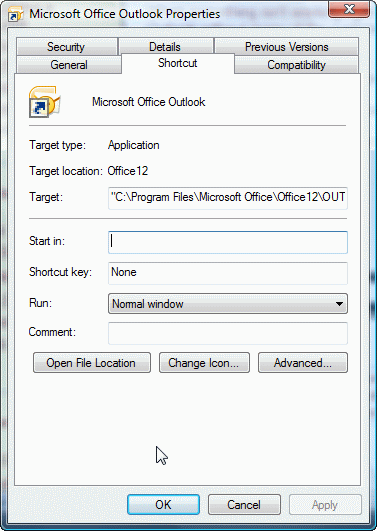
Quick Launch properties

If Outlook is not closing properly, look in Task Manager, Processes tab and verify it’s not running. You can open Task Manager by right clicking on the Windows task bar and choosing Task Manager.

The following safe switches are available:

/safe

Starts Outlook without extensions, Reading Pane, or toolbar customization. Works with all versions.

/safe:1

Starts Outlook with the Reading Pane off. Outlook 2003/2007 only.

/safe:2

Starts Outlook without checking mail at startup. Outlook 2003/2007 only.

/safe:3

Starts Outlook with extensions turned off, but listed in the Add-In Manager. Outlook 2003/2007.

/safe:4

Starts Outlook without loading Outcmd.dat (customized toolbars) and *.fav file. Outlook 2003/2007.

To see all of the command line switches Outlook supports, see Using Command lines

Related posts:

Tags: , ,

« « Use existing data file as the delivery location
How to Reset the View on Outlook folders » »

8 Responses to How to start Outlook in safe mode

  1. Wilfiied Maul on October 30, 2011 at 9:03 pm

    Problem: I can°t open my Microsoft Outlook 2003 on Windows 7
    this programm show me that msncon.dll is not there

    I dry allready with outlook.exe /resetnavpane ,but nothing is working
    and i look allredy in the Web for this >> msncon.dll <
    I need this Microsoft Outlook
    Wait for your replay soon as possible
    Yours faitfully
    Mr. Wilfried Maul from Germany

  2. Diane Poremsky on October 30, 2011 at 10:11 pm
  3. joe on November 15, 2011 at 7:52 pm

    http://bit.ly/SpeedyJoes42. Outlook with Xobni addon is very buggy. I’ve had to go into safe mode on two separate occasions due to Xobni.

  4. Diane Poremsky on November 15, 2011 at 8:12 pm

    A lot of addins are very buggy. :)

  5. Dale on December 6, 2011 at 11:25 am

    I am also using Outlook 2003, as I have been for many years. I have an issue that I have not bee able to resolve. Suddenly Outlook wants to run ONLY inth esafe mode. I have used Safe mode before, and any time I did, it would find or reslove any issue it had and then restart in normal run mode. NOt this time.
    I see no apparnet differences in behavoir or performance, so feel there is no problem, but I am forced to use Safe Mode or not run Outlook. I am hesitant to sync with my Android as I might pass the issue on to the Android.
    I would greatly appreciate input on this as soon as you can.
    Dale

  6. Femi on December 7, 2011 at 1:40 am

    Many thanks, i have been unable to t-shoot outlook’10 for 2 days till i came across this post…thanks once again as OLK2010 is now working :)

  7. Lois on March 27, 2012 at 10:38 pm

    I’m trying to use office 2010 on Windows 7 home premium, it opened up then I get the dreadful message “cannot start microsoft outlook , I have tried all of the above, safe mode, etc none of this works. I have uninstalled and reinstalled, I’ve even restored my laptop to factory setting thinking it was something wrong there, NOTHING works. I have tried to go back to office 2007 after uninstalling 2010, which I wasn’t having any of these problems, now it won’t open either. I can’t believe this doesn’t work, I’ve spent over a day working on this, there got to be a fix that works.

  8. Diane Poremsky on March 28, 2012 at 7:27 am

    That error usually can be fixed one of two ways – by resetting the navigation pane or turning off compatibility mode.

    A new profile should also work (as long as compatibility mode is not enabled).

Leave a Reply

Your email address will not be published. Required fields are marked *

*


Outlook Daily Tips by Email

*  Your Email Address:

Resources

Ask questions and share your knowledge in Outlook Forums.

More Outlook and Exchange articles available at Outlook and Exchange Solutions Center

Follow me on:

Follow @Outlooktips on Twitter   Join Outlooktips on Facebook


Subscribe to our Exchange Messaging Outlook weekly newsletter

*  Email Address: