![Diane Poremsky [Outlook MVP]](http://www.outlook-tips.net/images/2014/MVP_BlueOnly.png)
Outlook has several different tooltips, screentips or popups that annoy users:
Message List
When you hover over messages in Outlook a sometimes rather large screen tip pops up.
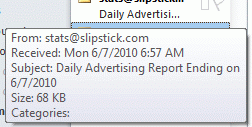
This screentip shows you the fields in the view that are not completely visible in the message list. You can’t disable these screen tips, or increase the length of time the mouse hovers over a message before the tip displays. These screentips are an “overflow” area for the fields in the view and they’ll disappear if you adjust the width of the message list; some fields can be removed by removing them from the view.
Please note that the Windows option for showing screentips/popups does not affect Outlook. On many forums you'll find advice to edit this registry key: [HKEY_CURRENT_USER\Software\Microsoft\Windows\CurrentVersion\Explorer\Advanced] and change the Value ShowInfoTip to 0. Not only does this not work in Outlook, you also don't need to edit the registry to change it. It's an option in Windows Explorer's Folder Options, View tab, down near the bottom.
Folder List
When the mouse hovers over folder names in the navigation pane or folder list, Outlook pops up the full name in a tooltip. This tool tip often obscures the folder below and provides little useful information for most users.

There is not a switch or option to turn it off, but you can prevent these popups if you either use shorter file names or make the navigation pane section wider – the tips only display when the folder name is too long to be completely visible.
Toolbar Buttons
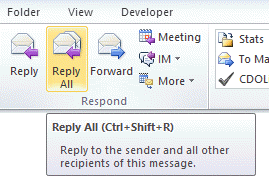
You can disable the screen tips you see when hovering over toolbar commands in File, Options, General tab (Outlook 2007/2010) or Views, Customize, Toolbars.
Published June 7, 2010. Last updated on April 3, 2012.