![Diane Poremsky [Outlook MVP]](http://www.outlook-tips.net/images/2014/MVP_BlueOnly.png)
An Outlook user asked:
I have no idea what setting I must of hit, but I'm seeing my first name appear in the middle of a sentence with brackets around it, i.e., [name]. It only happens when I'm composing email messages in Outlook. How can I adjust settings to get rid of this nuisance?
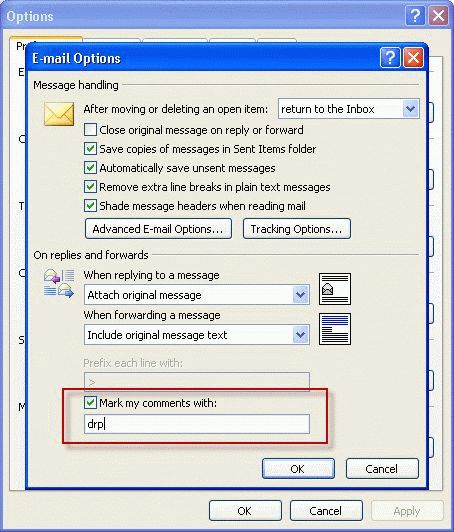
You should only see this when you reply to messages and type within the quoted text. Check your settings in Tools, Options, Email Options button – Mark my comments with at the bottom of the dialog.
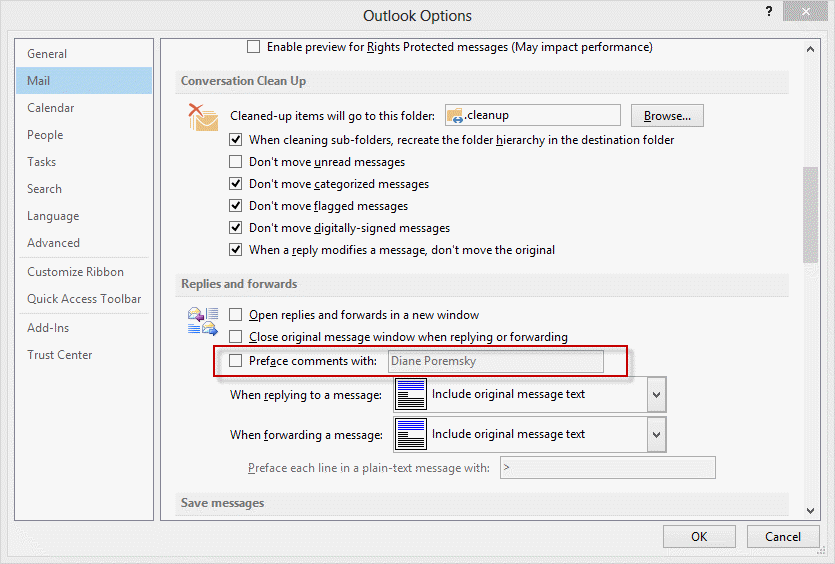
In Outlook 2010 and 2013, its on File, Options, Mail tab, and is called Preface comments with.
Another user had this question:
When I reply to a message in Outlook, I hit the return key to start a new line or paragraph and I get an open bracket with about 10 or so spaces then a closed bracket. How do I stop this? This is very irritating when I am always replying to messages for business.
It's the 'mark my comments' feature in Outlook. You have it enabled but don't have your name or initials in the 'mark my comments with' field. To disable it or enter text in the field go to Tools, Options, Email Options or File, Options, Mail tab in Outlook 2010 and up.
Published May 17, 2010. Last updated on March 11, 2013.