Tip 730: Custom Flags and Reminder Times

April 6, 2010
By

When you use custom flags in Outlook 2007 and 2010, the default reminder time depends on your choice for the Quick Click flag and the start or end time for your work day, set in Calendar options.

If Quick click is set to Today, it’s reminder is 1 hour before the end of the work day (set in Options, Calendar options). Custom flags also use this reminder time.

When Quick click is set for Tomorrow, the default reminder for tasks is the reminder time set in Tasks. Custom flags use the start of your work day for the default reminder time.

When Quick click is set to This week or Next week, the default reminder time is the reminder time for tasks. Custom flags use 8 AM reminders and the start and end dates default to the start and end of the Work week as set in Calendar options.

To change the start and end of your work day, go to  Tools, Options, Calendar options (Outlook 2007) or File, Options, Calendar in Outlook 2010 and change the Work Hours Start time and End time. 

To control the day the This week and Next week flag reminders fire, change the last day selected in the Work week field.
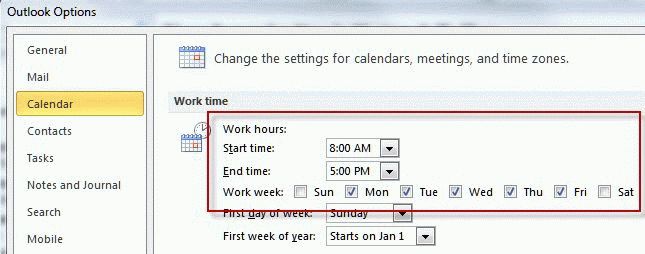
Flag reminders use Work week settings


Published April 6 2010
Previously published as Tip 462: Flag Reminder Times (Dec 14 2007)

Related posts:

Tip 290: Flags and Reminders
Tip 510: Change Reminder Times
Tip 454: View Reminder Times
Tip 517: Reminder Times
Tip 581: Odd Reminder Times

Tags: , , ,

« « Tip 729: Reading pane options
Tip 731: Outlook’s Mailbox Manager » »

2 Responses to Tip 730: Custom Flags and Reminder Times

  1. Tanya on November 7, 2011 at 11:54 pm

    Thank you! I’ve been trying to work that out for ages. Although what I would really like to do is set the time for a certain time of the day, which is not related to my start or finish time. Is there a way do set the time independently? I havne’t been able to find any info on this so assumme that it isn’t possible but you never know.

    Thanks,
    Tanya

  2. Diane Poremsky on November 8, 2011 at 5:29 am

    No, you can’t set the time globally. You can choose a time when you set the flag – its an extra step though.

  3. Zeldaskywardsword on November 21, 2011 at 5:27 am

    Thanks for the tip. I looked for it for ages!

Leave a Reply

Your email address will not be published. Required fields are marked *

Connect with Facebook

*


Outlook Daily Tips by Email

*  Your Email Address:

Resources

Ask questions and share your knowledge in Outlook Forums.

More Outlook and Exchange articles available at Outlook and Exchange Solutions Center

Follow me on:

Follow @Outlooktips on Twitter   Join Outlooktips on Facebook

Advertise here