![Diane Poremsky [Outlook MVP]](http://www.outlook-tips.net/images/2014/MVP_BlueOnly.png)
An Outlook user asked:
When I click on "To" to select who I am sending an email to, the "Select Names" dialog box pops up, with "Show Names From The" "Contacts" by default.
The list of contact is sorted "First Name Last Name" how do I reverse this ? In "Tools / Options / Contacts / Contacts Options" I already have "Last First" selected in both boxes.
The Contacts Options controls how names are parsed when you type in new contacts. Try the Address Book's Tools, Options dialog. Highlight the contacts list and hit the Change button then you can change the sort order.
For more information on the various contact and address book options, see Outlook Contact & Address Book Options
Check the Show Names Setting
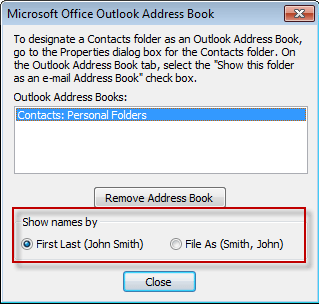
In Outlook 2010 and up, go to File, Account Settings, Address Books tab. Select the Outlook address book and click Change.
In Outlook 2007, this is at Tools, Account settings, Address Books tab. Select the Outlook address book and click Change and in Outlook 2003, look at Tools, E-mail accounts, View or change existing directories or address books, Outlook Address Book, Change, to set your sort order.
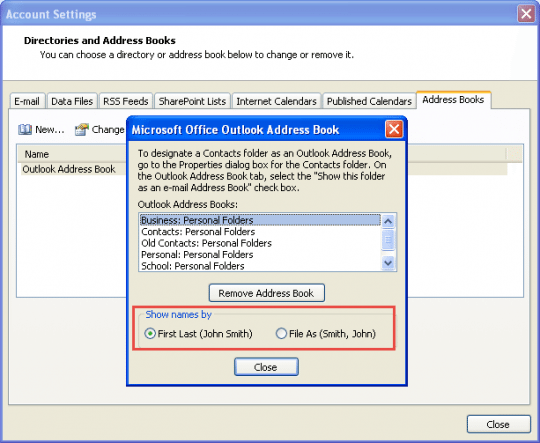
Note that your only options are to sort by "First, Last" or by "File As." So if you want your Outlook Address Book to sort by "Last, First" you must have your Contacts' File As fields configured that way.
Control which Address Book is shown first
This is favorite question:
When sending a new email, how do I get the address book to open directly to contacts instead of Global Address list? I'm tired of selecting Contacts each time.
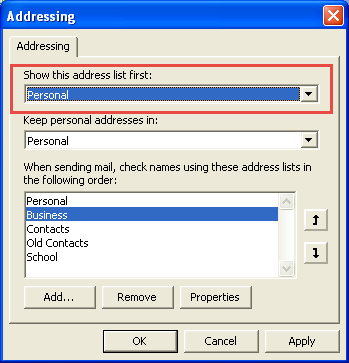
Open the Address Book dialog (Ctrl+Shift+B), click on its Tools, Options menu and change which Address book is shown first.
Published March 4, 2010. Last updated on September 13, 2014.