![Diane Poremsky [Outlook MVP]](http://www.outlook-tips.net/images/2014/MVP_BlueOnly.png)
An Outlook 2007 user asks: “Why does my calendar look like a patchwork of color? I know it’s related to color categories on appointments, but I can’t figure out why only some of the dates are shaded when I use color categories on all of the appointments.”
When you add a color category to a timed appointment, the background of the appointment is shaded in Day/Week/Month view.
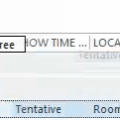
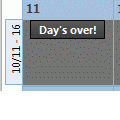
When you add a color category to an all day event, the entire day may be shaded, or not. What you select in the “Show time as” field controls the coloring. When set to Busy, the entire day is shaded the category color. If it’s a tentative event, the day is shown with category-colored crosshatching. Events marked busy will always be purple, while Free time is not colored.
Published July 23, 2008. Last updated on June 17, 2011.