![Diane Poremsky [Outlook MVP]](http://www.outlook-tips.net/images/2014/MVP_BlueOnly.png)
The view on Outlook 2007's To-do bar can be customized using any of the customization options available for Task views, including the ability to color items using Automatic Formatting or filtering items by date.
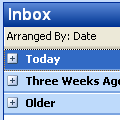
To change the view, right click on the field header, such as "Arrange By: field_name". You can choose a different arrange by field, turn off grouping or choose Customize to add filters or automatic formatting. You can only have one view for the To-do bar but the actual To-do List folder shown on the Task module supports many views.
A favorite feature of the taskpad on older versions was the 'active tasks for selected date' view; this is not possible to do in the to-do pane. The smaller taskpad at the bottom of day and week calendars replaces this option but the views available for this taskpad are very limited. Click on the task list header to change between start and due date or to show/hide completed tasks.
Published January 4, 2008. Last updated on June 17, 2011.