![Diane Poremsky [Outlook MVP]](http://www.outlook-tips.net/images/2014/MVP_BlueOnly.png)
Contact folders in Outlook 2002 and up are listed in the Address book in alphabetical order, you can't change that, but in the earlier versions of Outlook, Address Books were listed in the order they were enabled as an address book.
Do you want to control the order the Outlook Address Books are listed in Show names from picker? Since they are listed in the order you added them, remove the address lists and add them back in the order you want them to appear.
Open the Address book (Tools, Address book or Ctrl+Shift+B) and select its Tools, Options menu to open the Addressing options dialog. Remove some or all of the address lists and then Add them back.
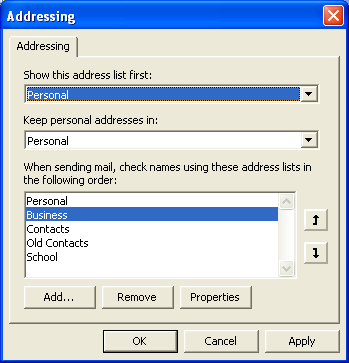
For all versions: you can also use this dialog to change the address list that is used first, choose the contacts folder to use for your personal addresses, and change the order autoresolve checks address lists.
Published November 20, 2003. Last updated on September 13, 2014.