![Diane Poremsky [Outlook MVP]](http://www.outlook-tips.net/images/2014/MVP_BlueOnly.png)
You can move around the calendar easily using Outlook's Go To Date Feature. Open Go To Date using Ctrl+G, from the Go menu or by right clicking on the Day/Week/Month Calendar and choosing Go To Date. Enter the date and the calendar format you want to view it in – one day, work week, week or month.
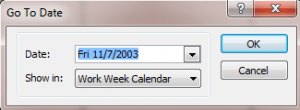
Like many of Outlook's date fields, Go To Date accepts shortcuts including 2m for 2 months and 3w for 3w from Today as well as natural language dates such as "Christmas".
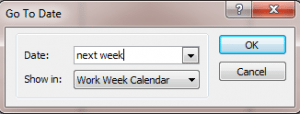
Note that in most cases, Outlook uses Today as the start date for shortcuts, not the currently selected date.
Published October 14, 2003. Last updated on July 13, 2014.