![Diane Poremsky [Outlook MVP]](http://www.outlook-tips.net/images/2014/MVP_BlueOnly.png)
If you have two (or more) email accounts collecting email and always want to send replies using the default account, Outlook always uses the receiving account when you reply. You can select the correct sending account when you reply, but it's easy to forget to do this.
Is there a better way?
Yes, provided you never want to send messages using the second account, you can edit the second account's SMTP information to use the default account's SMTP and set your preferred email address as the Reply to Address.
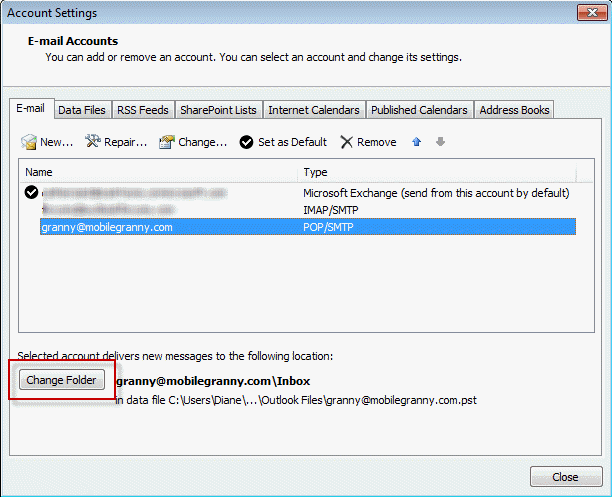
Outlook 2010 and 2013: open the Account settings dialog from the File, Account settings dialog and double click on the account you want to edit.
Outlook 2007: Tools, Account Settings dialog and double click on the account you want to edit.
Outlook 2002 and 2003: Open the secondary account using Tools, Email Accounts, Change existing accounts…. select the account and click Change. On the first screen, you can enter your preferred email address in the From Address field.
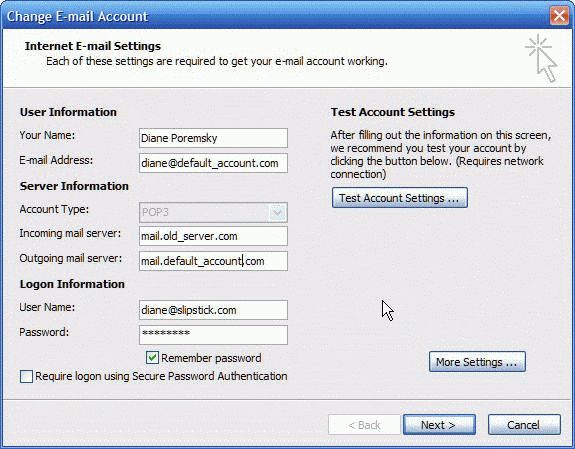
Enter the preferred SMTP (sending server) in the Outgoing mail server field.
Click More Settings Button
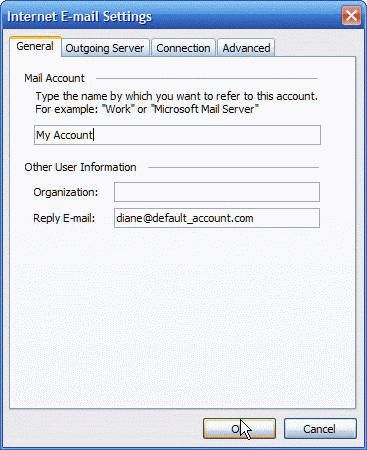
On the General Tab, enter your default email address in the Reply email field. This insures replies come to the default email account.
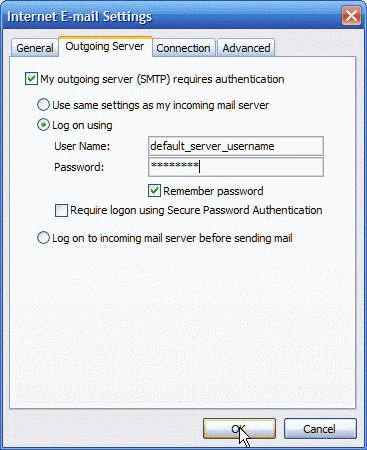
On the Outgoing Server tab, select Log on using button an enter the default account's log on information.
Ok your way back to the Accounts dialog and Finish the dialog.
Older version: The steps are similar. Choose Tools, Accounts or Tools, Services to access the accounts dialog.
Published January 15, 2011. Last updated on October 25, 2020.