![Diane Poremsky [Outlook MVP]](http://www.outlook-tips.net/images/2014/MVP_BlueOnly.png)
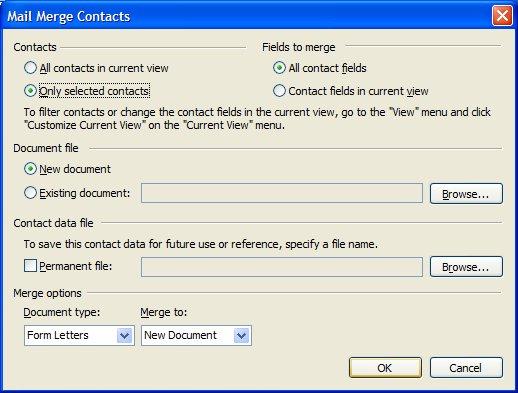
If you want to do do a mail merge to create mailing labels, follow the steps in Use Outlook's Contacts with Mail Merge to begin your mail merge.
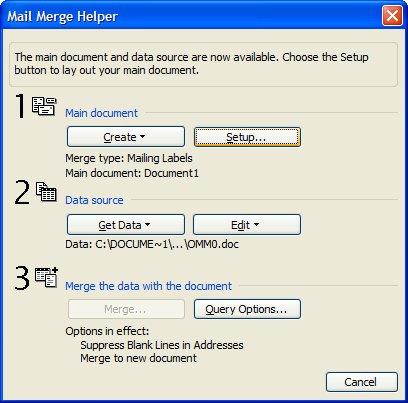
When the Mail merge dialog opens, select Labels from the Document Type menu. Click the Ok button and the merge document is created. When Word opens, you'll be presented with a message telling you to press the Setup button in the MailMerge helper dialog.
When the MailMerge helper dialog opens, press the Setup button.
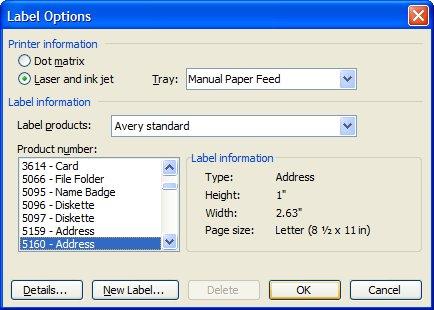
This opens the Label option dialog, where you choose your label style.
Click OK after selecting your label style to return to the MailMerge helper dialog.
Click Close and Word loads the template for your selected label type.
Enter the merge fields you need for your labels, using the Insert Fields buttons or Step 4 of the Mail Merge task pane. Merge to Printer or to New Document.
Published May 13, 2011. Last updated on October 25, 2020.