![Diane Poremsky [Outlook MVP]](http://www.outlook-tips.net/images/2014/MVP_BlueOnly.png)

Outlook 2010 Beta has a bug in the 'prompt before deleting' checkbox - deselecting the checkbox at Options, Advanced, Prompt for confirmation before deleting doesn't actually work and you’ll still be prompted. It's fixed in later builds but until then, users can edit the registry to disable the prompt.At Start menu, Search field or Run command, type regedit and browse to … [Read more...] about Tip 726: Outlook 2010: Prompt before deleting
Tips Archive
Tip 725: Open *.EML in Outlook

For years, I changed the association for eml (and nws) to notepad so email attachments or files on my hard drive would open outside of OE. (Before that, I changed the file extension to txt or html.)This reghack will allow you to open *.eml attachments (OE/Mail/Live mail messages) in Outlook's message form (if you want to reply to the message, use Alt+S to send if the send … [Read more...] about Tip 725: Open *.EML in Outlook
Tip 723: Don't use Compatibility Mode
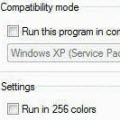
We're seeing more and more errors caused by compatibility mode. I couldn't understand why users were even touching the compatibility mode settings until someone said they ran the Troubleshoot Compatibility utility in Windows and IT made the changes. Yikes.When you right click on the application shortcut, one of the options is Troubleshoot compatibility. DO NOT use this. … [Read more...] about Tip 723: Don't use Compatibility Mode
Tip 722: Blank Hotmail Messages
We’re seeing a lot of complaint from Hotmail Connector users - they have empty messages in Outlook while the messages are fine online: “many e-mails appear to be downloaded, ie show a time but there is no header, or body of message that can be viewed. The messages are on the server. I can view them with Live Mail or going online via Hotmail. They … [Read more...] about Tip 722: Blank Hotmail Messages
Tip 721: Contact Birthdays
When you import contacts, their birthdays are not automatically added to the calendar as they are when you create a new contact manually or edit existing contacts. You have three options: 1. Open and save each contact 2. Use VBA code (//www.outlookcode.com/d/code/remindbday.htm) 3. Use a utility: Rebuild Birthdays and Anniversaries From Adding Birthdays and … [Read more...] about Tip 721: Contact Birthdays