Tip 373: Filters and the From Field

August 31, 2006
By

If you ever tried to create a filter using the From fields, you probably discovered it’s weird and doesn’t seem to work as expected. This is because there are two fields labeled “From” on the Filter dialog and each one is linked to a different From field.

When you create a View, Search Folder, or Advanced Find you choose your criteria for the filter. The first tab, called Messages when you are looking for email, has a From field. You can also choose the From field (or type “From” in the Field textbox). One would think both of these From fields are the same, however they are not. The one on the first tab is mislabeled and is the From email address field while the one on the Advanced tab uses the From display name field.
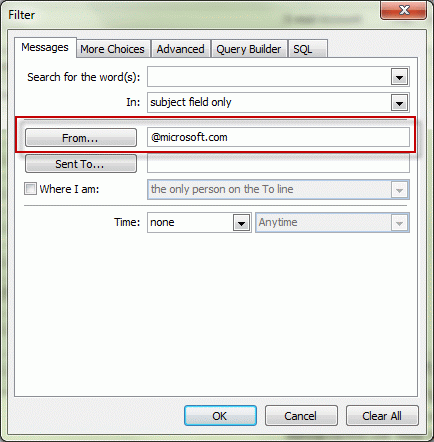
So which From field is used when you right-click on a message and choose Find All, From Sender? The one on the Advanced tab, which looks for messages based on display name only.

Bonus tip: If you want to view all mail sent from a domain, use the From field on the Messages tab and enter @domain.com or even just domain.

Published Aug 31 2006

Related posts:

« « Tip 371: Clearing the Autocomplete Cache
Tip 374: Reply to All » »

4 Responses to Tip 373: Filters and the From Field

  1. Jan-Willem on June 10, 2011 at 1:55 pm

    Hi there,
    I’m strugling with this tip and cannot really find the proper way out yet. Perhaps there is another tip that can help me?

    I’m trying to create a search folder that filters out all emails send to AND from a certain domain.
    So the to and from field should not read the ‘from display’ and ‘to display’ field but the corresponding ‘from/to email address’ fields.
    Using the query option is is possible to make an OR filter on from and to however it seems that all the from fields here are the wrong ‘display’ type.
    Is there a solution for this?

    Thanks

  2. outlooktips on June 11, 2011 at 6:48 am

    You need to use QueryBuilder for OR operations. We do have several tips for querybuilder… I’ll set up some search folders and get the exact steps needed. It might also be possible to use the pre-defined search folder for to or from and select just the domain. I’ll check on that too.

  3. Sreeni on August 4, 2011 at 7:52 am

    I just figured out that there is a very simple non-SQL-query solution to selecting all emails received from and sent to all persons in one particular domain.

    - While defining a new search folder select the search folder type “Nachrichten von oder an bestimmte Personen” (sorry, I only have a german version; it should be something like “Messages to or from a particular person”)
    - Enter the domain (eg. “@xxx.de”) in the field “Von oder an->” (should be “From or to->”) and
    - Save the search folder

  4. Doug on August 9, 2011 at 1:33 pm

    Thanks for your help with this.

    I used your content plus some vba to create a routine to add a search folders that checks email to/from/cc, subject, message, and a few others for a string. I only needed it for Inbox, but it could be modified.

    I have an outlook rule that places a copy of Sent items in my inbox, so I can track them. This search finds those as well.

    I don’t know how it’ll come out in this post, hope it’s useful.

    – Doug

    Sub CreateSearchFolderForKeyword()
    On Error GoTo Err_CreateSearchFolderForKeyword

    Dim strFilter As String
    strFilter = InputBox(Prompt:=”Text to search for:”, Title:=”Enter Search Text”)
    If strFilter = “” Then Exit Sub

    Dim strDASLFilter As String
    strDASLFilter = “”"urn:schemas:httpmail:fromname”" LIKE ‘%” & strFilter & “%’ ” + _
    “OR “”urn:schemas:httpmail:textdescription”" LIKE ‘%” & strFilter & “%’ ” + _
    “OR “”urn:schemas:httpmail:displaycc”" LIKE ‘%” & strFilter & “%’ ” + _
    “OR “”urn:schemas:httpmail:displayto”" LIKE ‘%” & strFilter & “%’ ” + _
    “OR “”urn:schemas:httpmail:subject”" LIKE ‘%” & strFilter & “%’ ” + _
    “OR “”urn:schemas:httpmail:thread-topic”" LIKE ‘%” & strFilter & “%’ ” + _
    “OR “”http://schemas.microsoft.com/mapi/received_by_name”" LIKE ‘%” & strFilter & “%’ ” + _
    “OR “”http://schemas.microsoft.com/mapi/id/{00062008-0000-0000-C000-000000000046}/8586001f”" LIKE ‘%” & strFilter & “%’ ” + _
    “OR “”http://schemas.microsoft.com/mapi/id/{00062008-0000-0000-C000-000000000046}/85a4001f”" LIKE ‘%” & strFilter & “%’ ” + _
    “OR “”http://schemas.microsoft.com/mapi/id/{00062041-0000-0000-C000-000000000046}/8904001f”" LIKE ‘%” & strFilter & “%’ ” + _
    “OR “”http://schemas.microsoft.com/mapi/proptag/0x0e03001f”" LIKE ‘%” & strFilter & “%’ ” + _
    “OR “”http://schemas.microsoft.com/mapi/proptag/0x0e04001f”" LIKE ‘%” & strFilter & “%’ ” + _
    “OR “”http://schemas.microsoft.com/mapi/proptag/0x0042001f”" LIKE ‘%” & strFilter & “%’ ” + _
    “OR “”http://schemas.microsoft.com/mapi/proptag/0x0044001f”" LIKE ‘%” & strFilter & “%’ ” + _
    “OR “”http://schemas.microsoft.com/mapi/proptag/0x0065001f”" LIKE ‘%” & strFilter & “%’ ”

    Dim strScope As String
    strScope = “‘Inbox’”

    Dim objSearch As Search
    Set objSearch = Application.AdvancedSearch(Scope:=strScope, Filter:=strDASLFilter, SearchSubFolders:=False, Tag:=”SearchFolder”)

    ‘Save the search results to a searchfolder and create shortcut to this searchfolder
    objSearch.Save (strFilter)

    ‘ Clean up.
    Set objSearch = Nothing

    Exit Sub

    Err_CreateSearchFolderForKeyword:

    MsgBox “Error # ” & Err & ” : ” & Error(Err)

Leave a Reply

Your email address will not be published. Required fields are marked *

*


Outlook Daily Tips by Email

*  Your Email Address:

Resources

Ask questions and share your knowledge in Outlook Forums.

More Outlook and Exchange articles available at Outlook and Exchange Solutions Center

Follow me on:

Follow @Outlooktips on Twitter   Join Outlooktips on Facebook


Subscribe to our Exchange Messaging Outlook weekly newsletter

*  Email Address: