![Diane Poremsky [Outlook MVP]](http://www.outlook-tips.net/images/2014/MVP_BlueOnly.png)
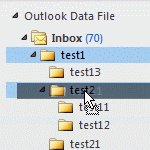 The question of how to "bulk move" folders in Microsoft Outlook comes up often and the answer is that it's surprisingly easy to do with drag and drop: select the folder and drag (or right click, drag and drop to copy the folder). If the folder contains subfolders, they (and their contents) are moved too.
Drag and drop is not as quick as selecting folders and moving could be, but it meets the needs of most users. Some users complain it's too easy when they accidentally move folders and then can't find them. (For solutions to that problem, see Tip 951: How to Stop Accidentally Dragging Outlook Folders.)
If you use this method to copy the contents of any of Outlook's default folders, Outlook will complain that you can't move the default folders. Use a right click and drag instead – this will copy the folder and all of its contents.
A related question is how to bulk delete folders. Again, this is as easy as drag and drop. If the folders are near the Deleted Items folder (so it's a short drag), drag the folders to the Deleted items folder, otherwise drag folders into one of the other folders you want to delete, then delete it. If you are using an older version of classic Outlook, either method eliminates the need to respond to the highly annoying 'are you sure' dialog over and over. Current versions of classic Outlook will ask "are you sure" for every folder move.
If you need to move or delete folders frequently, I'm aware of one Outlook add-in with this capability: Pandali Folder Master for Outlook
Published June 22, 2011. Last updated on December 4, 2024.