• Skip to main content
  • Skip to primary sidebar
  • Skip to footer

Outlook Tips

Learning Microsoft Outlook One Tip At A Time

Diane Poremsky [Outlook MVP]

  • Home
  • Tips Archive
  • How to...
  • Beginner
  • Outlook.com

Mark Appointments or Dates Completed in Outlook

A lot of people want Outlook’s calendar to work like a paper calendar – they want to cross off appointments as they finish or X out “yesterday” to mark it complete.

Also see Automatically change Appointment categories using VBA

Outlook doesn’t offer such an option, but Outlook 2007 (and up) users can use color categories to mark events ‘completed’. Just create a Completed category and assign it a dark color. As you finish appointments, assign the Completed category – the calendar item picks up the color of the last category applied, which is Completed.

The category colors were brightened in newer builds of Outlook 16.0 (Outlook 2016, 2019, 2021, and 365). Dark gray is still around, but not quite as dark.
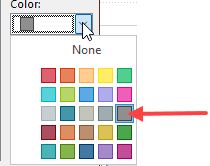
category colors in Outlook 365

A chart of the old and new color names and category colors can be found here: Outlook Categories and Color Categories

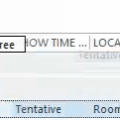
Or you can use a feature of Outlook 2007 (and up) that many people find annoying: when you apply a color category to an all day event that is marked busy or tentative, the background color for that date matches the color category. You can either create a new appointment and set it ‘busy’ or ‘tentative’ then apply the complete category or change an existing all-day event and apply the completed category.

mark appointments or days finished using color categories

Tip 507: Crossing Out Days, Part 2

After yesterday's tip for Outlook 2007, several readers wanted to know if it would work for Outlook 2003. Sorry, no, it only works with Outlook 2007 (and up). You can assign labels to completed appointments in Outlook 2002/2003 to mark them off but you are limited in the choice of colors and you can’t mark the full day (using all day events), like you can in Outlook 2007.

Use Category Filters

You can use the Completed category in conjunction with a view filter to mark or hide completed items. In any version of Outlook, you can use a filter to hide the appointments assigned to the Completed category. While its not the same as crossing out a date, if your calendar is ‘full’ the lack of appointments on previous dates helps you focus on today in much the same manner as crossing out a date on a paper calendar does.

Note: If a category is assigned to an item, you cannot use a custom view to change its color on the calendar.

Published May 21, 2008. Last updated on August 3, 2022.
Share this:

  • Twitter
  • Facebook
  • LinkedIn
  • More
  • Print
  • Tumblr
  • Reddit
  • Pocket
  • Pinterest

Related posts:

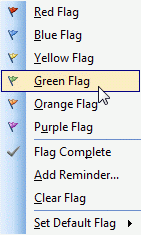
When you color code a shared calendar by user, you can tell by just looking at the calendar if someone is busy. You need Outlook 2Tip 79: Color Coding a Shared Calendar Bolded dates in the navigation calendarTip 121: Bolded Dates Drag to show time as FreeTip 322: Imported Appointments are 'Busy' Outlook 2003 flag colors are limited to 6 basic colorsTip 354: Changing Quick Flag Colors
Subscribe
Notify of
3 Comments
Newest
Oldest Most Voted
Inline Feedbacks
View all comments

Primary Sidebar

Search OutlookTips

Training and one-on-one assistance

Do you need help setting up Outlook or want some one-on-one training? I'm available for hire. See Training and one-on-one assistance for fees and to check availability.

All-Time Most Popular Posts

  • Windows 7 and Vista Start Search field
    How to start Outlook in safe mode
  • outlook.com icon
    Delete a message stuck in Outlook's Outbox
  • How to use Outlook's Command line switches
  • Use Cleanviews switch to reset all views
    How to Reset the View on Outlook folders
  • Where are my Outlook Files?
  • Folder paths
    How to Find Folder Paths in Outlook Mailboxes
  • How to use Scanpst.exe to repair Outlook data files
  • Outlook's Missing Holidays
  • backstage page
    Where is File tab in Outlook?
  • Icons found in the Inbox, Message Headers, and Toolbars

Footer

Recent Posts

  • Log into multiple Outlook on the web accounts
  • Keeping Hackers out of Microsoft accounts
  • Microsoft Account Closure Email
  • Outlook on the web Quick Actions moved to the right
  • Automatically sign out of Outlook.com

Recent Bug List

Microsoft keeps a running list of issues affecting recently released updates at Fixes or workarounds for recent issues in Outlook for Windows.

Office Update History

Update history for supported Office versions is at Update history for Office

Resources

Ask questions and share your knowledge in Outlook Forums.

You Might Like

Where is File tab in Outlook?
Using Two-factor authentication
Where are my Outlook Files?
How to use Outlook's Command line switches

© 2003–2026 · Outlook Tips

wpDiscuz
You are going to send email to

Move Comment